Use Generate locations to automate location scouting and identify the best possible locations based on your data.
On the Geospatial analysis dashboard, click Add new analysis and choose Area analysis.
Select the delivery area you'd like to analyze and click Start.
Choose a date range and base layer.
Optionally, click Show current network and select the type of OOH points to display. This will calculate current coverage and exclude those locations from suggestions.
Click Generate > Generate locations.
Enter the number of locations you want to generate.
Choose a color for the generated pins and click Next.
Optionally, select one or more enrichment layers.
Click Generate.
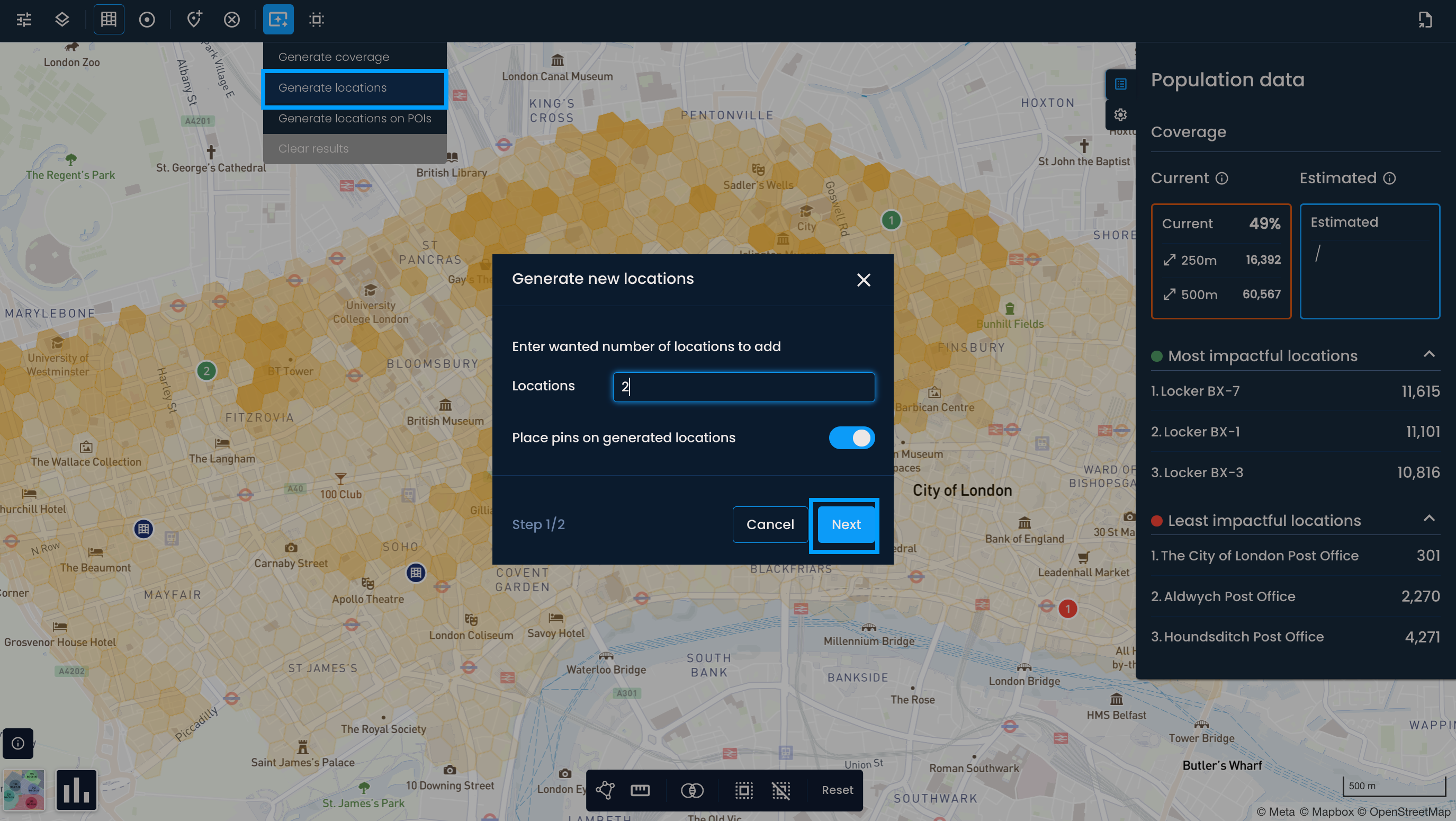
Pins will appear on the map indicating potential locations.
The estimated coverage will update in the Coverage panel.
A notification at the top of the screen will show the achieved coverage and the number of added locations.
You can run the process again. Previously generated locations will not be considered in future runs.

Starting from scratch
If you're building a new network, use Generate locations to identify the best possible starting points based on your data.
Expanding an existing network
Turn on your current network first, then generate the number of additional locations you want to add.
Benchmarking your current network
Not sure if your existing locations are optimally placed? Hide your current network, then generate the same number of locations you currently have within the area. Compare the suggested locations and their estimated coverage against your current state to identify any gaps.
