Use Generate coverage to get location suggestions that help you reach a specific coverage target within the delivery area.
On the Geospatial analysis dashboard, click Add new analysis and choose Area analysis.
Select the area you'd like to analyze and click Start.
Choose a date range and base layer.
Optionally, click Show current network and select the type of OOH points to display. This will calculate current coverage and exclude those locations from suggestions.
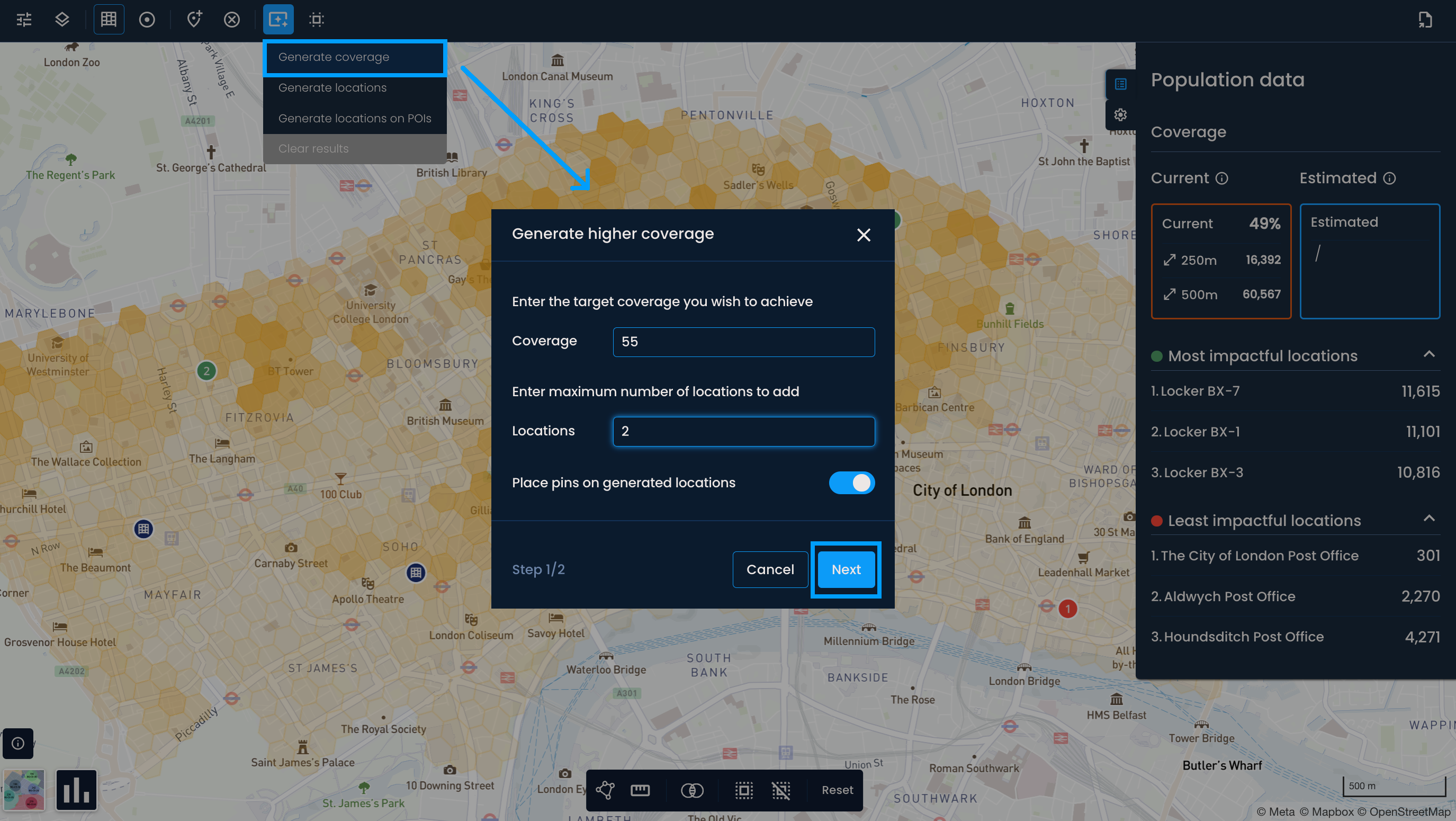
Click Generate > Generate coverage.
Enter the target coverage (without the % symbol). If you have an existing network, this must be higher than the current coverage.
Enter the maximum number of locations to add (must be greater than 0).
Choose a color for the generated pins and click Next.
Optionally, select one or more enrichment layers.
Click Generate.
Pins will appear on the map indicating potential locations.
The estimated coverage will update in the Coverage panel.
A notification at the top of the screen will show the achieved coverage and the number of added locations.

You can run the process again. Previously generated locations will not be considered in future runs.
Matching or surpassing a competitor's coverage
If you have a competitor's network ready for POI collection, you can estimate its coverage and use it as your target. Then, use Generate coverage to get location suggestions needed to reach or exceed it.
Finding the optimal number of locations
Not sure how many OOH points you need in a delivery area? Set an ambitious coverage target with a high maximum number of locations. The results will show you the minimum number of locations needed to reach that coverage, giving you a data-driven baseline for planning.
Expanding toward a coverage goal
If your team has a defined coverage target, turn on your existing network and generate the locations needed to close the gap without manually scouting for them.
