By default, all selected data layers are treated equally when generating recommendations. Weighted scoring lets you specify which layers matter most, giving them greater influence over the final results.
On the Geospatial analysis dashboard, click Add new analysis and choose Area analysis.
Select the delivery area you'd like to analyze and click Start.
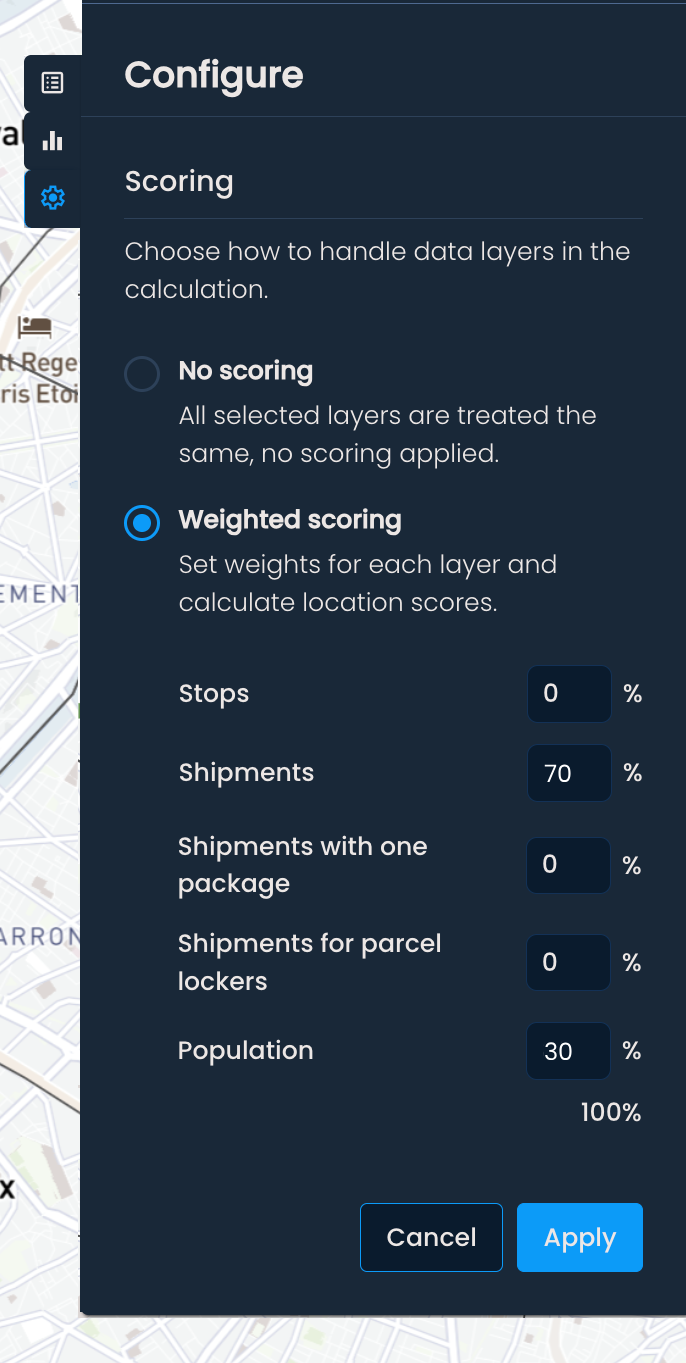
Open the Configure panel and find the Scoring section.
Select Weighted scoring and assign a weight (0–100%) to each available data layer. Only layers with a non-zero weight will influence the recommendations.
Click Apply to save.
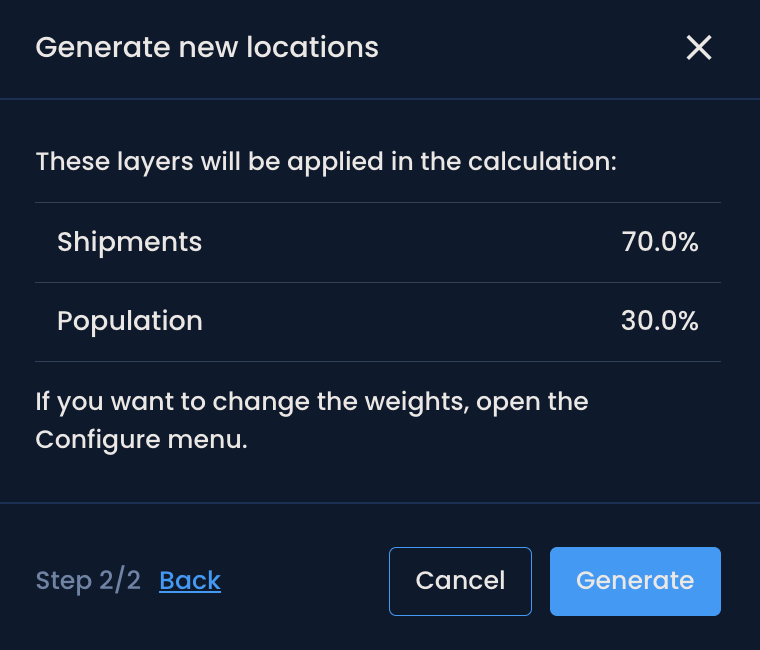
When you run any modelling feature (e.g., Generate locations), the configured weights will be applied to the recommendations. You can review the active layers and their weights in step 2 of the generation process. To adjust them, open the Configure menu and update as needed.
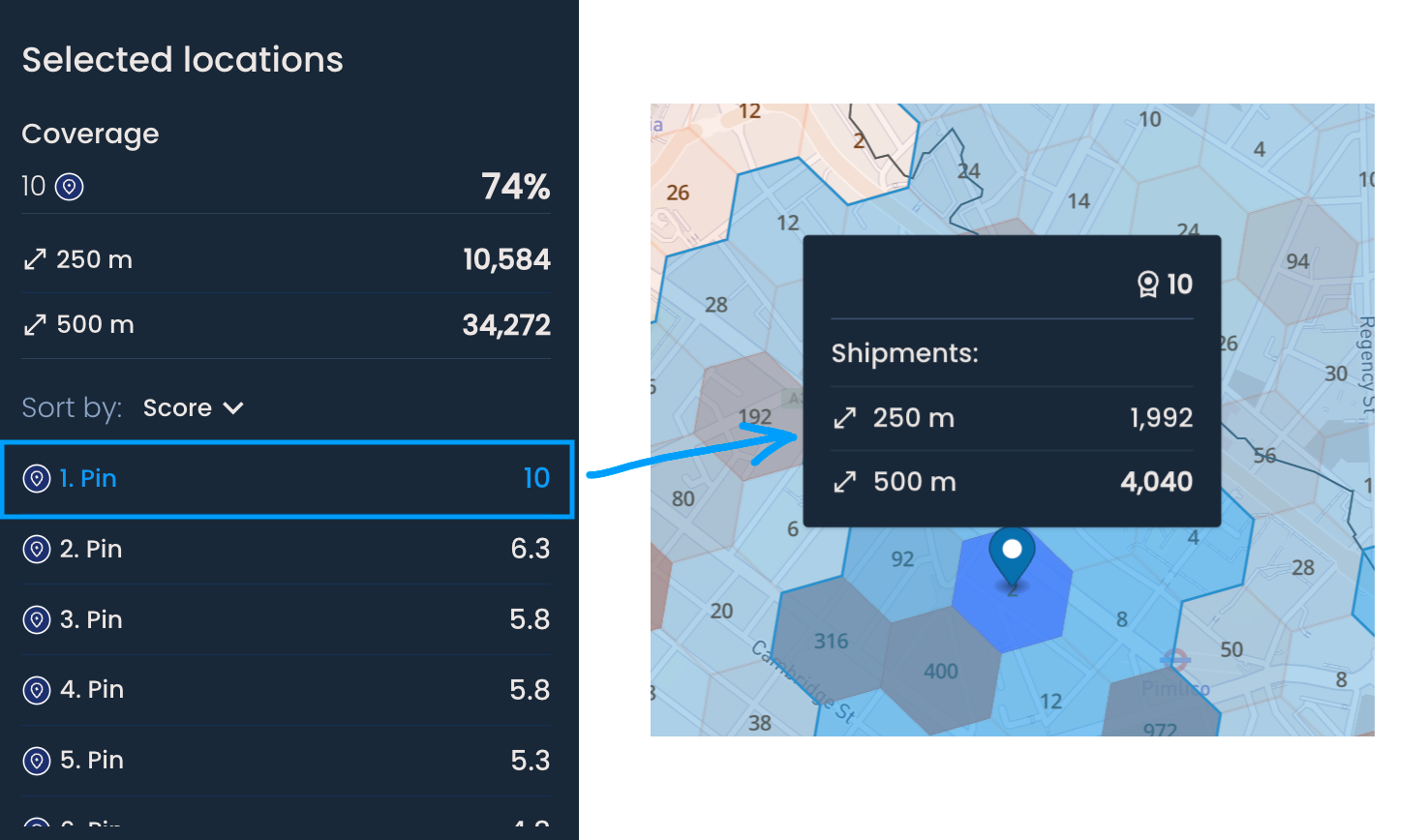
If you've used weighted scoring to generate new locations, the Selected locations panel will show a ranked list of generated locations by score, on a scale of 1–10, with the highest scores at the top.
Click a location in the list to zoom to its pin on the map.
Click a pin on the map to see its coverage and score.

Prioritizing high-volume areas
If shipment volume is your primary concern, assign a higher weight to shipment data so the recommendations focus on areas with the most delivery activity.
Comparing different strategies
Run the same generation with different weight configurations to see how the recommendations change. For example, compare a population-weighted model against a shipment-weighted one to understand which approach better fits your network goals.
