By marking specific POI collections for tracking, you can view their coverage and network size on the Overview page in the Tracking section. This feature is helpful for comparing these networks to your current out-of-home delivery network or for monitoring partner locations as you expand.
To track a collection:
Go to the Manage POIs page.
In the Actions column, click the three dots (⋮) next to the collection you want to track.
From the dropdown menu, select Mark for tracking. A tracking icon will appear next to the name of the tracked collections.
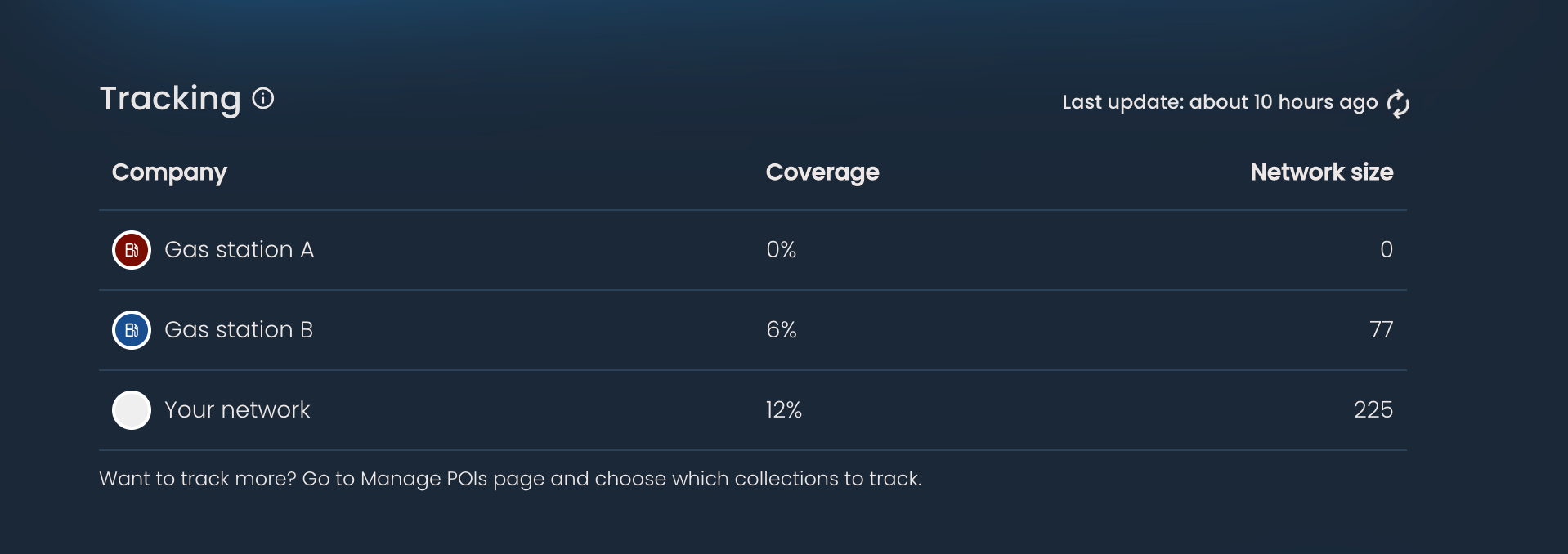
Once you go to the Overview page, in the Tracking section, you will see:
Your existing network and all tracked POI collections
The coverage, calculated using population data within a 500m radius of each location.
The network size, i.e., the number of locations.

To stop tracking a collection:
Go to the Manage POIs page.
In the Actions column, click the three dots (⋮) next to the tracked collection.
From the dropdown menu, select Stop tracking. The collection will be removed from the tracking section, and the icon will disappear.
