The Route analysis page offers an overview of courier productivity during one day, with a visualized route, movement direction, and sequence of stops.
All stops are visualized on the map as pins, which can look differently based on their type and number:
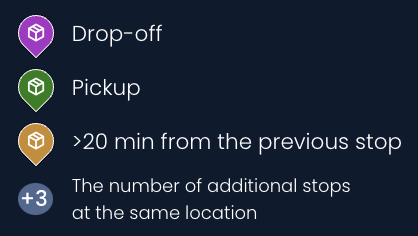
The number in each pin represents the sequence of stops. If you hover over a stop, the next stop in the sequence will be highlighted.
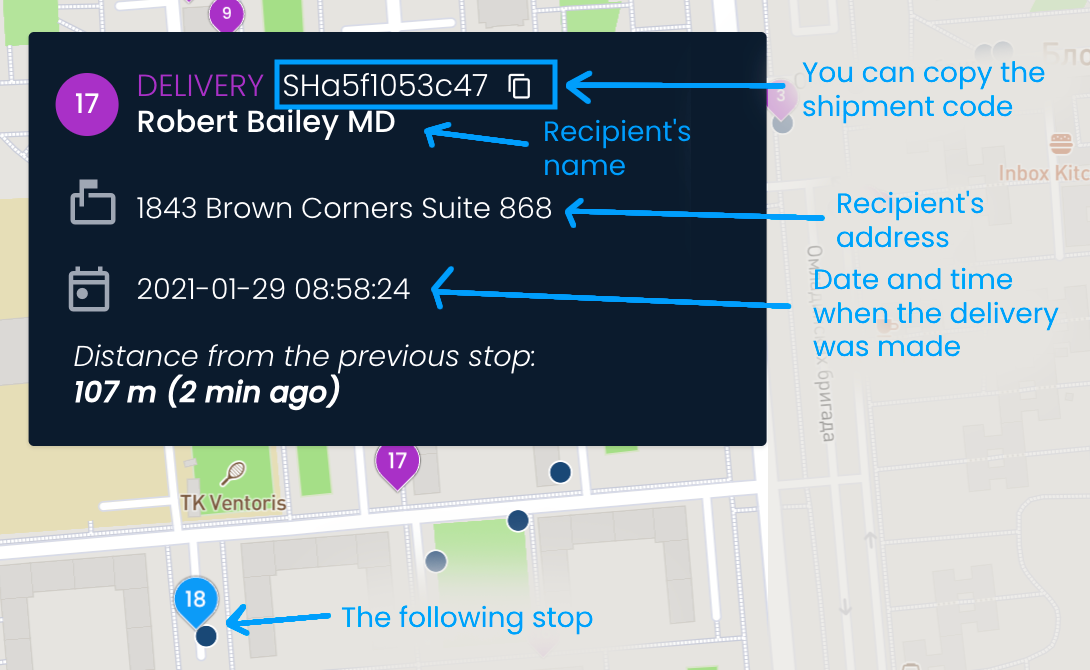
You can click on the pins to see more information about the stop, such as the address, time of delivery or pickup, and distance from the previous stop in meters and minutes.
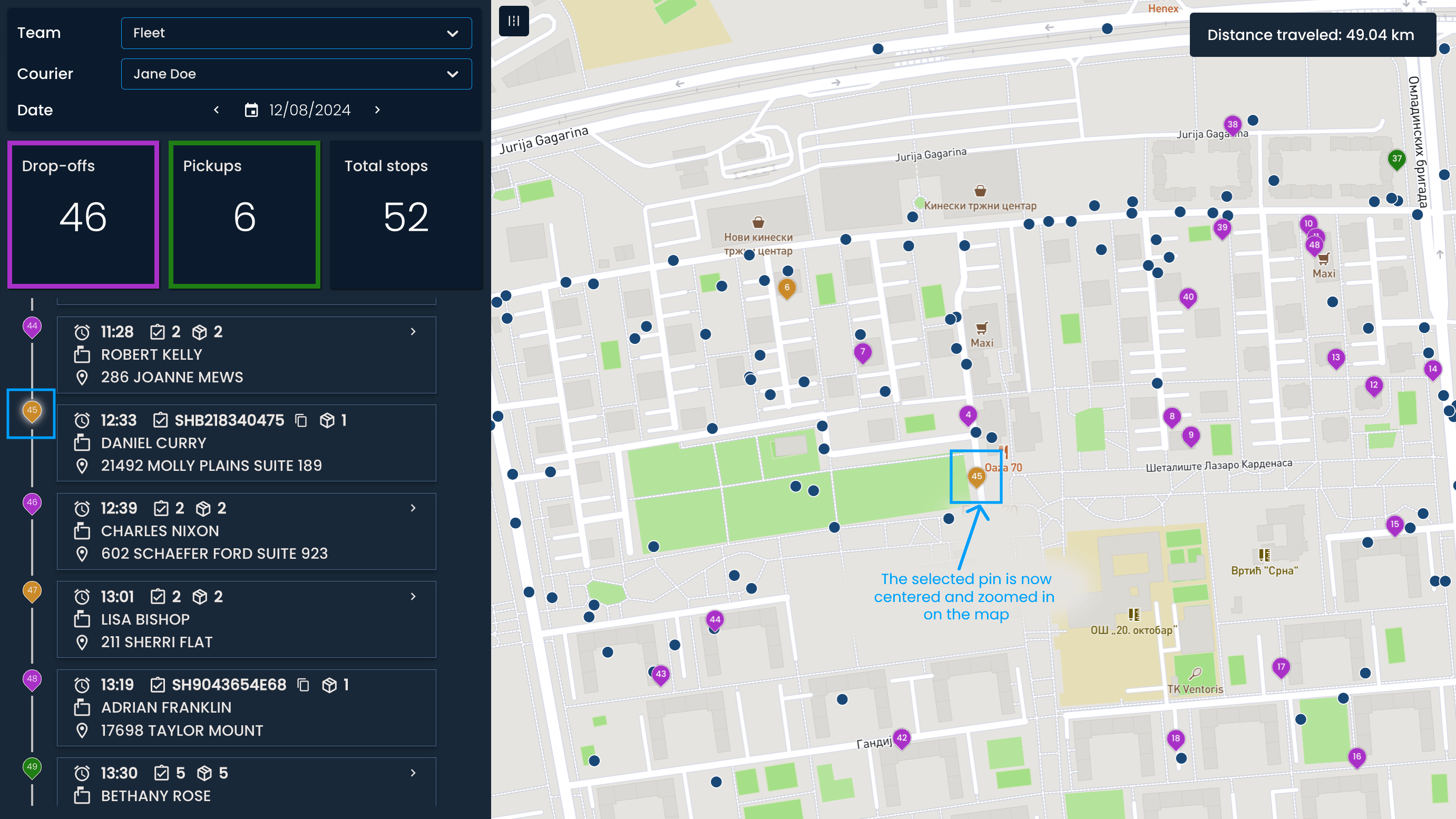
On the left side, you will see a list of all stops made within the day. Each list item contains the time when the stop was made, the shipment code that can be copied, the name of the recipient (or sender for pickups), and the address where the shipment was dropped off or picked up.
Clicking on a stop from the list will adjust the map so it zooms in on the location of the stop.

The blue dots on the map indicate where the courier or vehicle was at a specific moment.
By clicking the Show courier route button, the dots will form a light blue line, which shows the courier’s route and direction of movement.
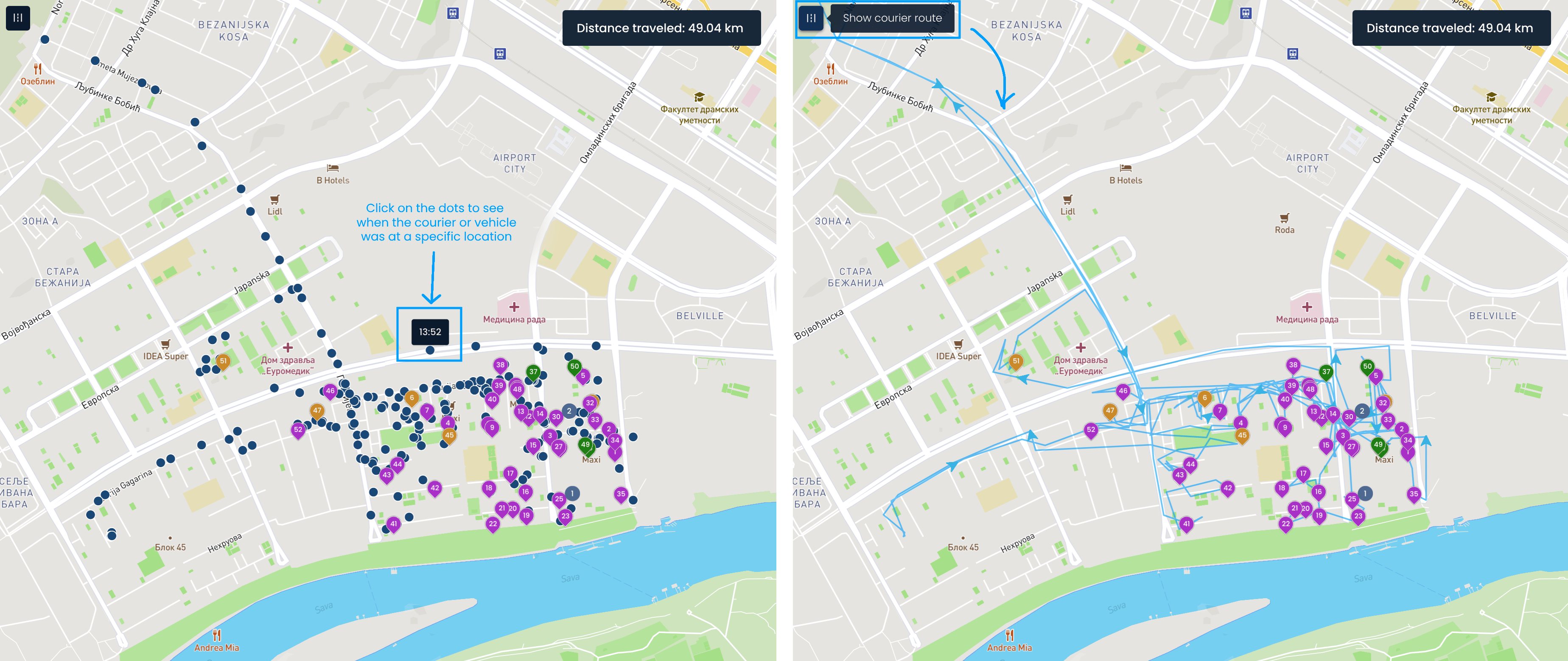

In the top right corner, you can see the total distance traveled.
