On the Manage teams page, you can view a list of couriers and OOH points, see which teams they belong to, and group them into virtual teams.
There are two types of teams - physical and virtual.
Physical teams are how you internally organize couriers and OOH points, for example, by hubs, cities, or geographical distribution. Physical teams are pulled from your internal systems and cannot be changed manually on the Mily Tech platform.
Virtual teams are created by platform users. These are fictive teams used to group couriers or OOH points for easier performance monitoring and analysis.
For example, let’s say you’ve added 100 new parcel lockers across three different cities. You can group the newly placed lockers into one virtual team, which will make it easier for you to track their performance in one place rather than switching between the physical teams.
Let’s go through the three sections - Couriers, OOH Points, and Teams.
The Couriers section lists active couriers pulled from your internal systems. You do not need to add couriers manually; once a new courier is registered in your system, the list will be automatically updated.
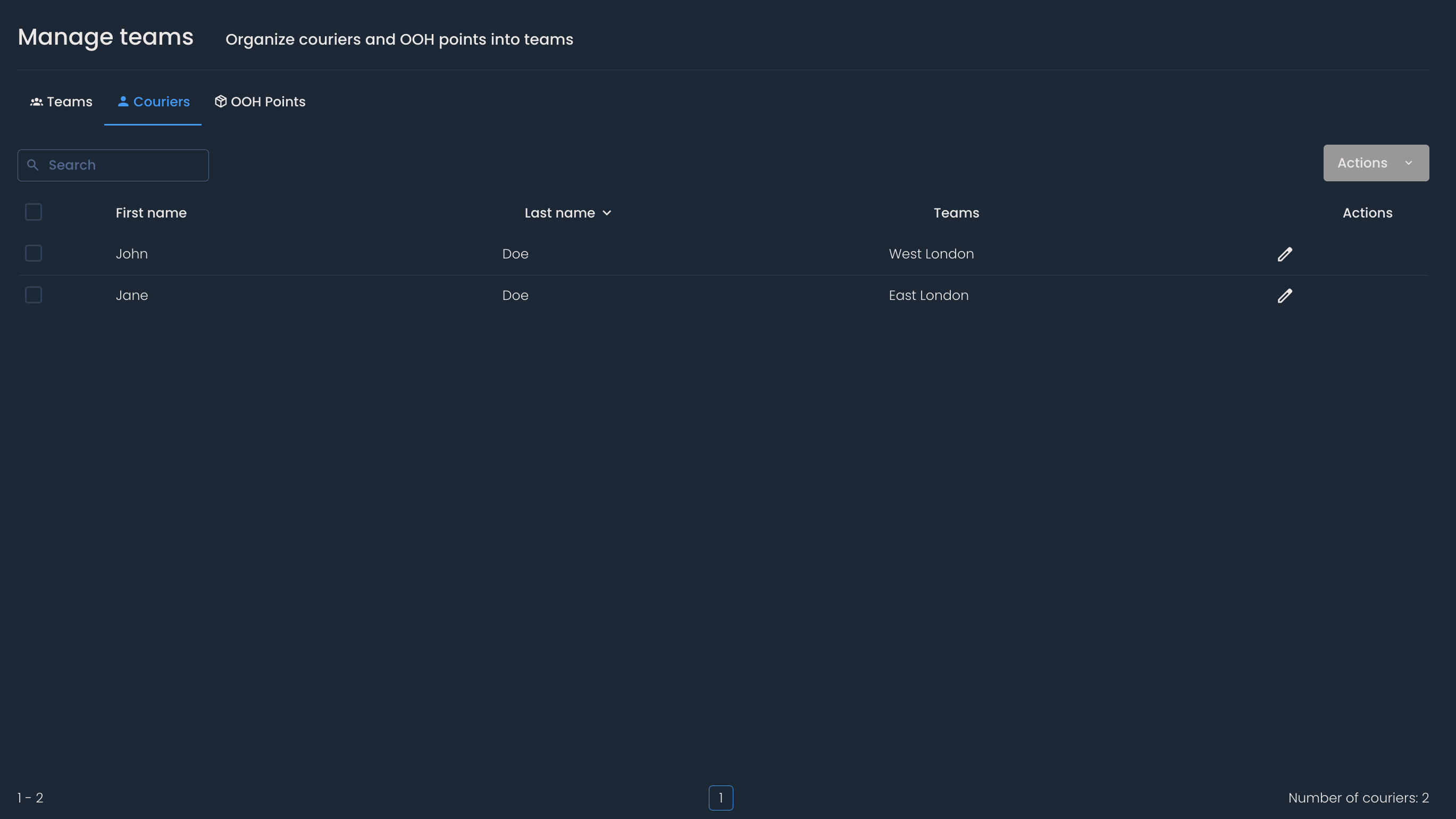
You can filter the list by clicking on the label of each column:
First and last name - Pulled from internal systems and cannot be edited on the platform.
Teams - Indicates which team the courier belongs to. Physical teams cannot be edited on the platform.
This will come in handy if you want to find couriers that match specific criteria, for example, they all belong to one team.
Alternatively, by entering their name or team, you can use the search bar to find the courier you’re looking for
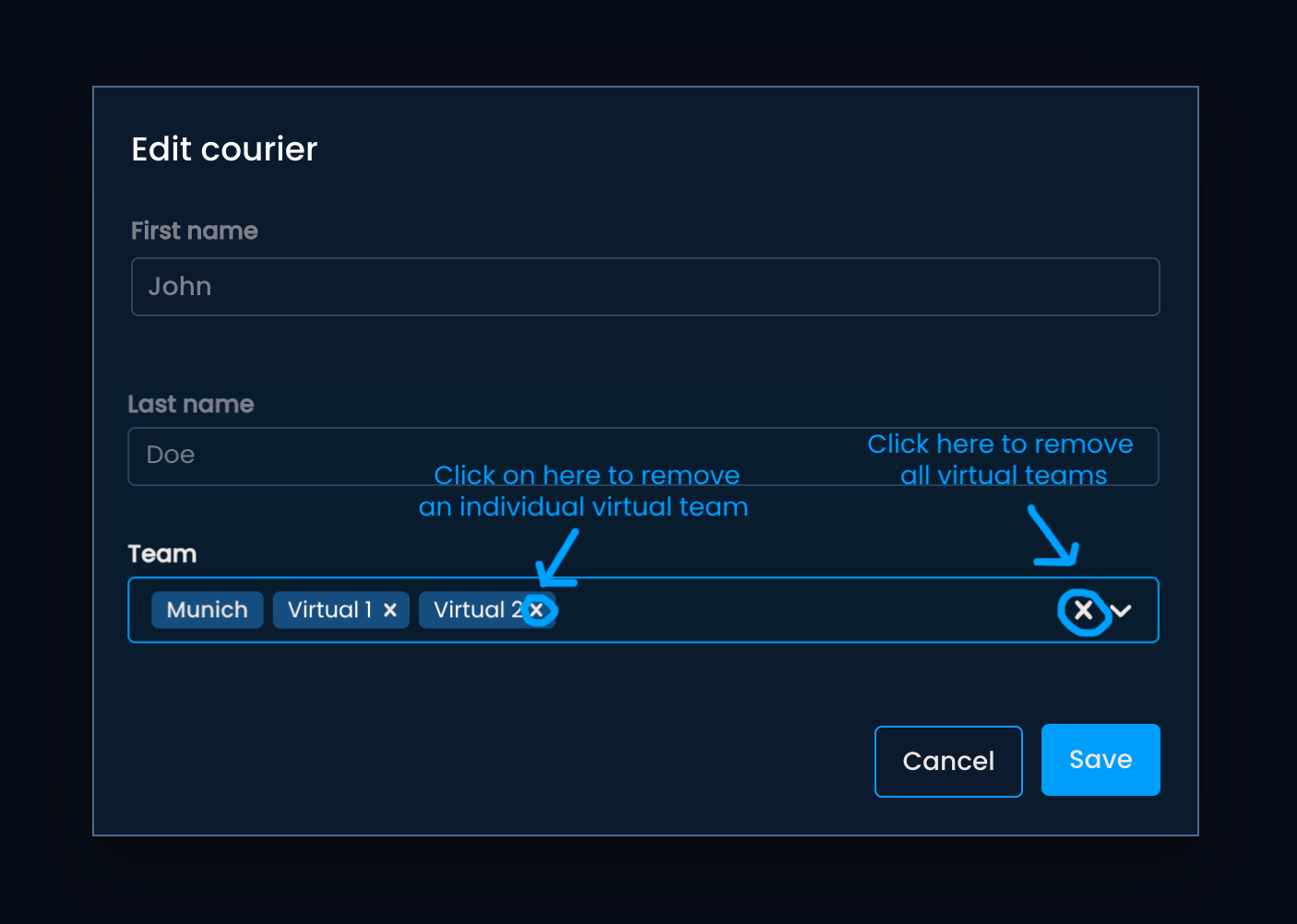
To edit the status of a courier or the virtual teams they belong to, click on the pencil icon in the Actions column. Once the Actions menu opens, you’ll be able to:
Remove individual virtual teams by clicking on the x next to their name
Remove all virtual teams by clicking X in the right corner of the input field
Assign the courier to a virtual team, either by typing in the team's name or finding it in the dropdown menu.
To keep the changes you just made, click Save.
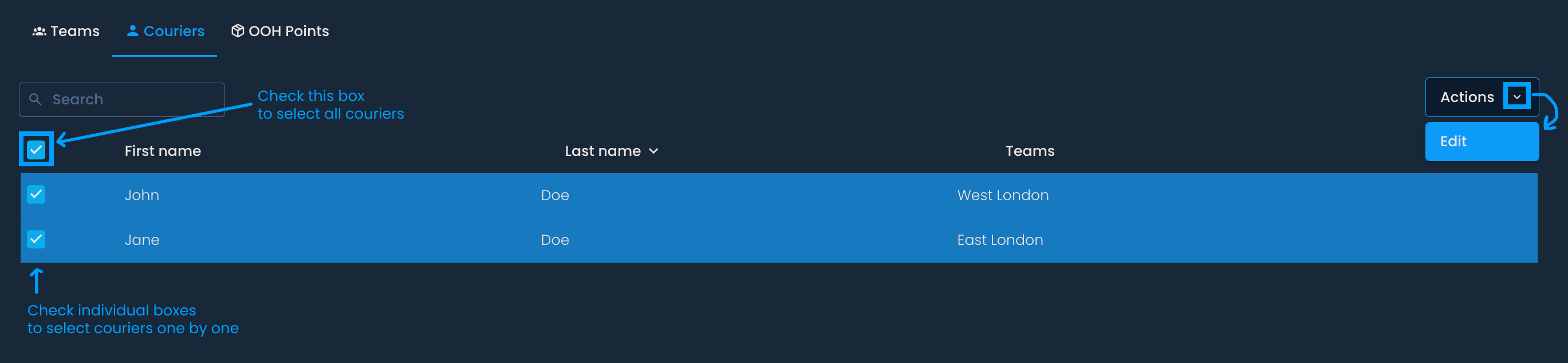
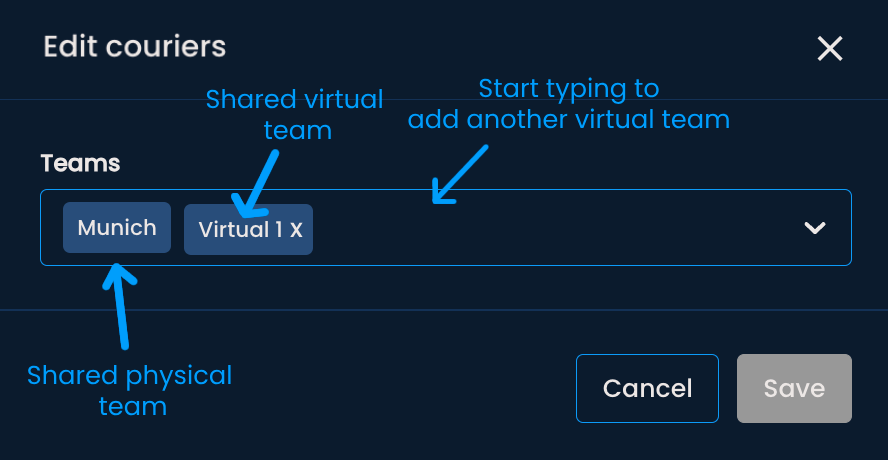
To update the virtual teams for multiple couriers at once, check the box next to each courier’s name, or select all couriers by checking the box at the top of the column. Then, click the Actions button and choose Edit. From there, select the virtual team you want to assign to the couriers, or remove the shared virtual team for the selected couriers.

The OOH Points section contains a list of parcel lockers and parcel shops pulled from your company’s systems. The list will be updated when a new OOH point is registered in your system.
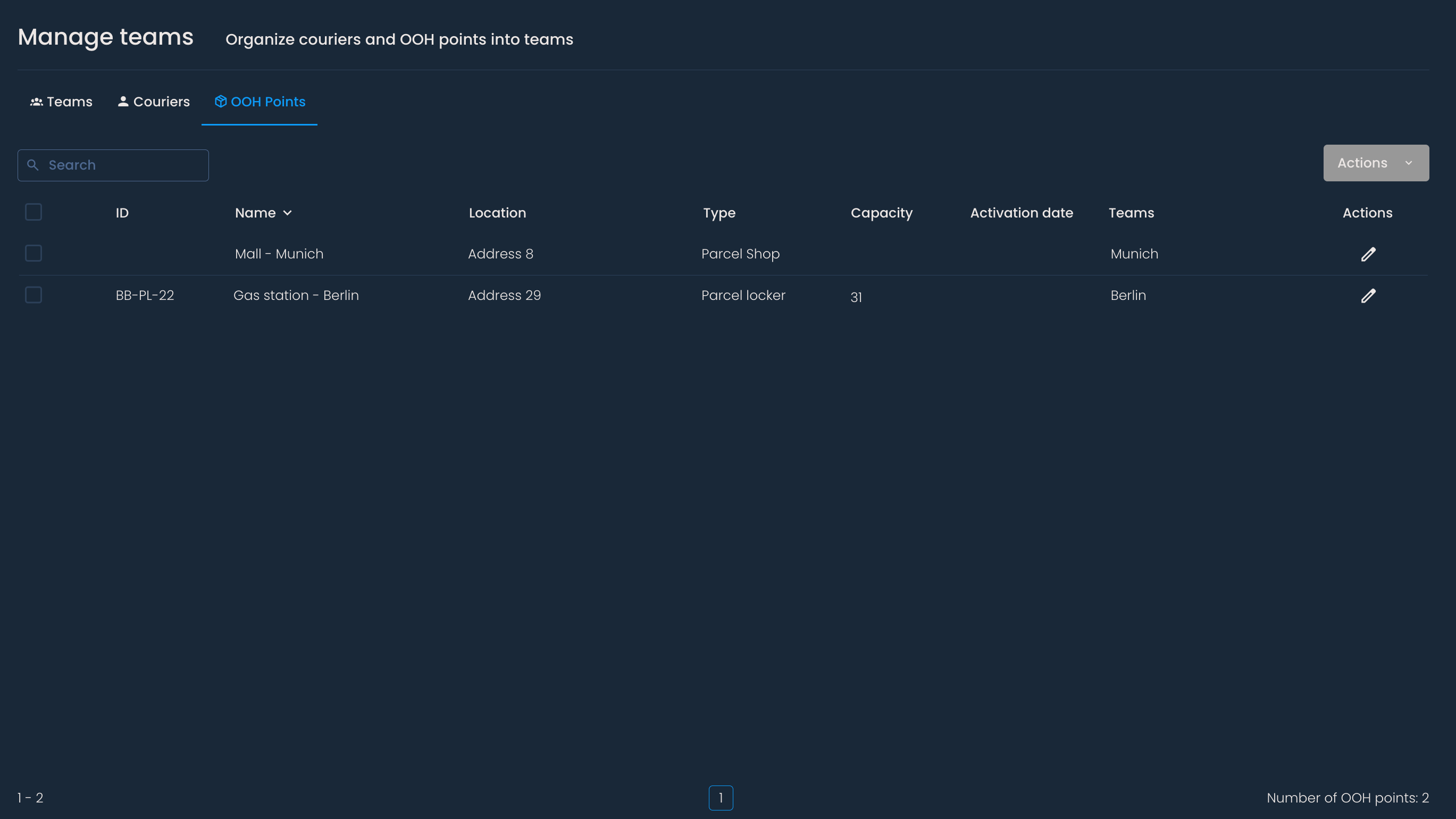
You can filter the list by clicking on the label of each column:
ID - The unique ID assigned to OOH points in internal systems.
Name - How the OOH point is referred to in internal systems.
Location - The address where the OOH point is located.
Type - Indicates the type of OOH point, such as a parcel locker or parcel shop.
Teams - Indicates which team the OOH point belongs to.
Capacity - Shows the number of compartments of parcel lockers.

You can use the search bar to find a specific OOH point by entering its ID, name, location, type, or capacity.
You can change which virtual team the parcel locker or shop belongs to by clicking the pencil icon in the Actions column. Remove individual or all virtual teams by clicking x next to their name or X in the right corner of the input field. To assign them to another virtual team, start typing the name of the team or choose it from the drop-down menu.
To update virtual teams of multiple OOH points at once, check the box next to their ID or name. Then, click the Actions button and Edit, and proceed to remove shared virtual teams or group the selected OOH points into other virtual teams.
On the Teams section you will see a list of physical and virtual teams.
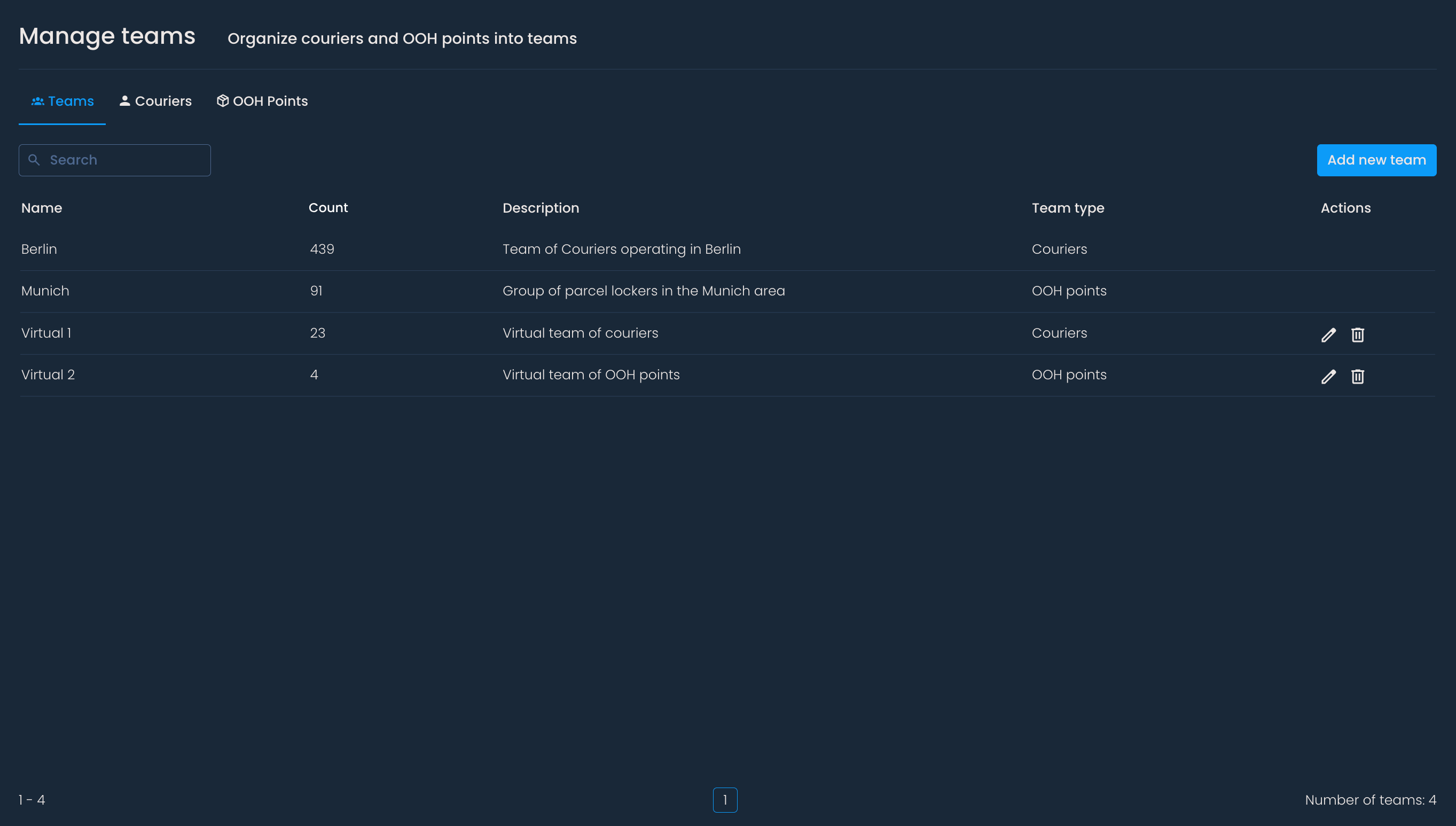
You can filter the list by clicking on the label of each column:
Name - How you choose to name the team or how it is referred to in internal systems.
Count - The number of couriers or OOH points in the team
Description - A short description to help identify which entities are grouped together.
Team type - Indicates if the team is made out of couriers or OOH points.
You can use the search bar to find a specific Team by entering its name, a part of the description, or type.
Adding a new team
To create a virtual team, click on the Add new team button. Then, enter the name and short description. Finally, choose whether the team will be a group of couriers or OOH points. Once the team is created, you will not be able to change the team type.
After clicking Save, you should see a “Team added successfully!” notification.
To group couriers or OOH points into the newly added team, go to the corresponding section. Then, edit each courier or OOH point to assign the team. Note that you won’t be able to group couriers in a team with the type “OOH point” to OOH points and vice versa.
Now, you will be able to analyze the specific group of couriers or OOH points throughout the platform (e.g., on Courier analysis, OOH Point analysis, Statistics, etc.).
Editing teams
To edit a team, click the pen icon in the Actions column. You’ll then be able to change its name and description. Click Save to keep the changes you made.
Deleting teams
To delete a team, click the bin icon in the Actions column. If you choose to continue, all team data will be removed, but associated members will remain intact. This action cannot be undone.
