If you find a bug or experience any other issues while using the platform, please follow the steps outlined below to report it.
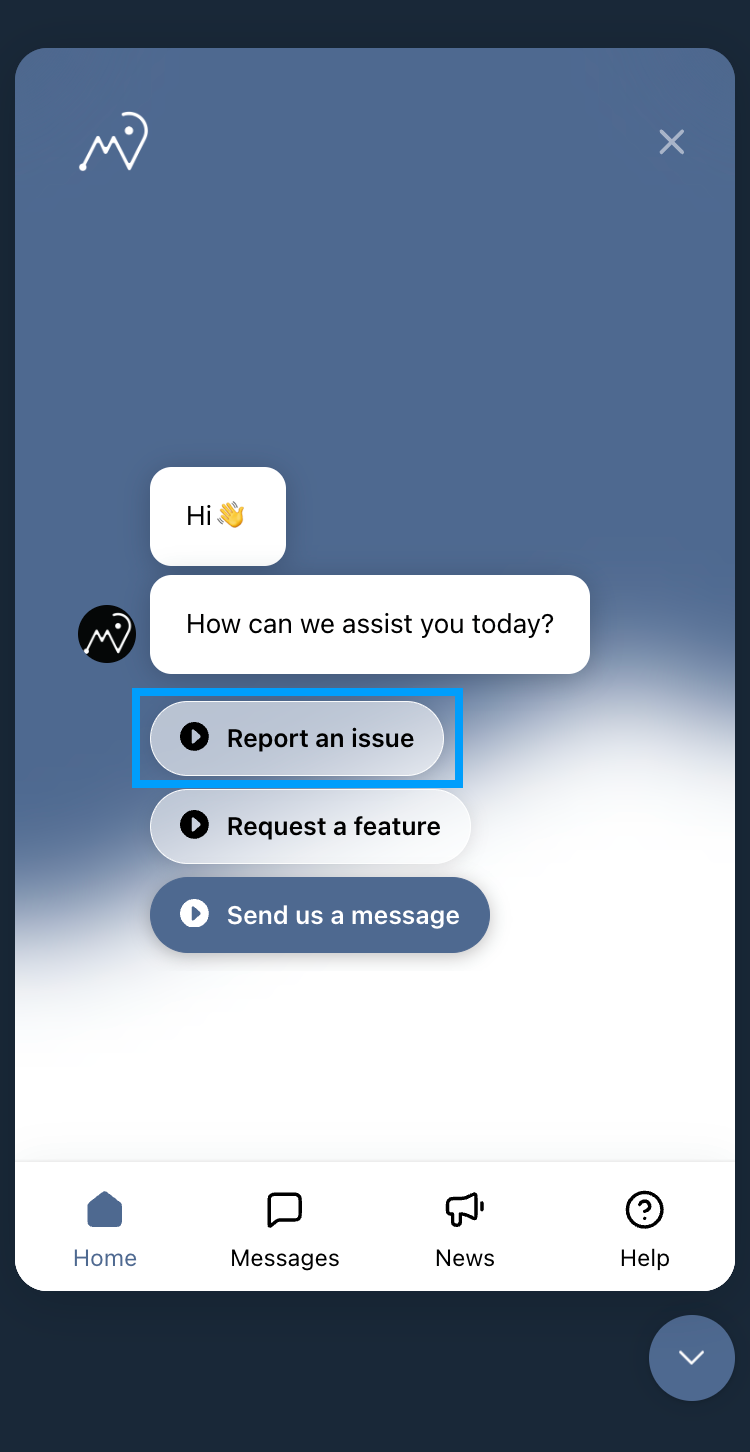
Click on the Support Widget in the lower right corner of the platform and choose Report an issue option.
Provide a detailed explanation and any relevant screenshots or screen recordings to help us identify the problem. The more information you can provide, the better equipped we will be to respond and resolve the issue.
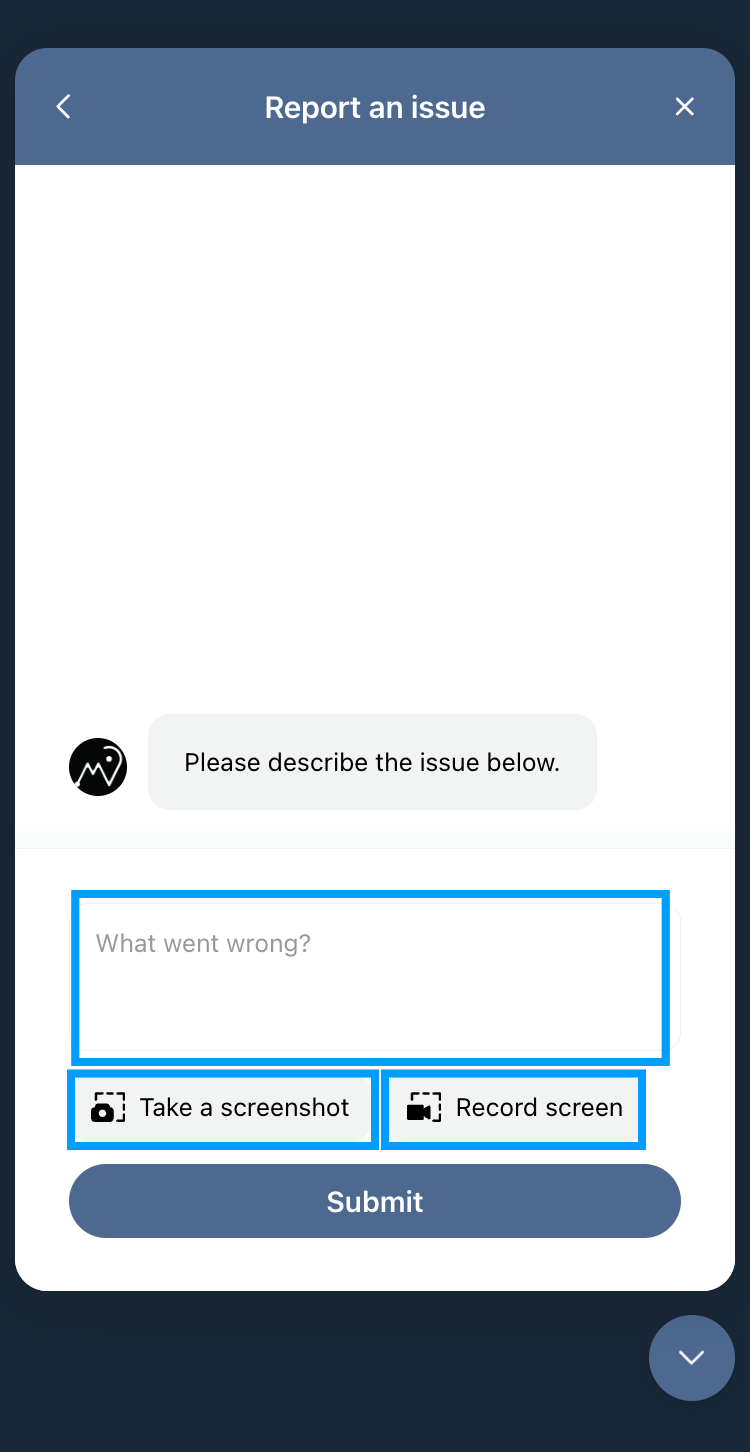
The following text explains how to use the screenshot and screen recording options.

The support widget will disappear, and you’ll be able to see the whole screen. You can mark the bug by selecting the desired area with a rectangular shape or by drawing on the screen. You can also change the color of the shapes and drawings.
If unsatisfied with how you marked the bug, you can redo the process by clicking Undo.
You can cancel the screenshot at any time by clicking on X in the upper right corner of the page.
Once you’re ready, click Next to proceed with the report.

Screen recording is similar to the screenshot process explained above. After choosing the Record screen option, click the Start recording button. A menu will appear, allowing you to choose whether to record a specific window, tab or entire screen.

You can record a video for a maximum of 2 minutes. While recording, you can select parts of the screen using a rectangular shape or draw on the screen in different colors.
You can cancel the recording at any time by clicking on X in the upper right corner of the page.
Click on the Stop recording button to finish recording. You will be given the option to preview the video, and if you are not satisfied, you can choose the Retry option.
Once you have taken the final screen recording, click Next to proceed with the report.
After you take a screenshot or record the video and click Next, the attachment will be added to the report. Once you provide a written explanation, you can click the Submit button.

After submitting your request, you can track its progress and provide additional materials if needed within the open chat.

You can access all open conversations by opening the Support Widget and selecting the Messages button.

