A user is a unique account on the Mily Tech platform.
When adding a new user, you set permissions for their account at the same time. Permissions control which features and data a user has access to. In the platform, they're defined by roles, which are a set of:
Zones - groups of delivery areas, teams, and hubs;
Policies - groups of features.

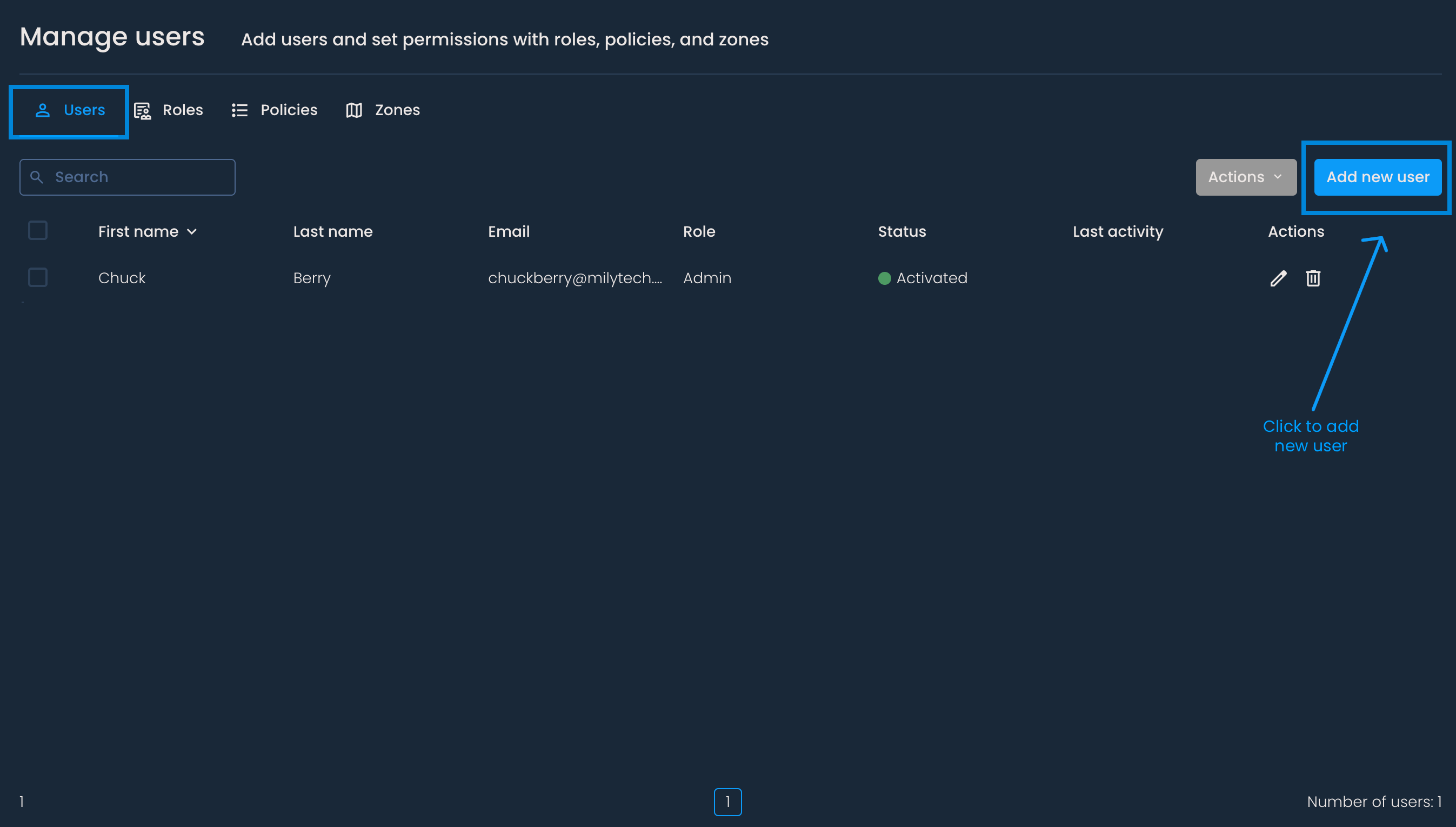
To invite a new user, go to the Manage users page. While on the Users tab, click the Add new user button in the right corner.
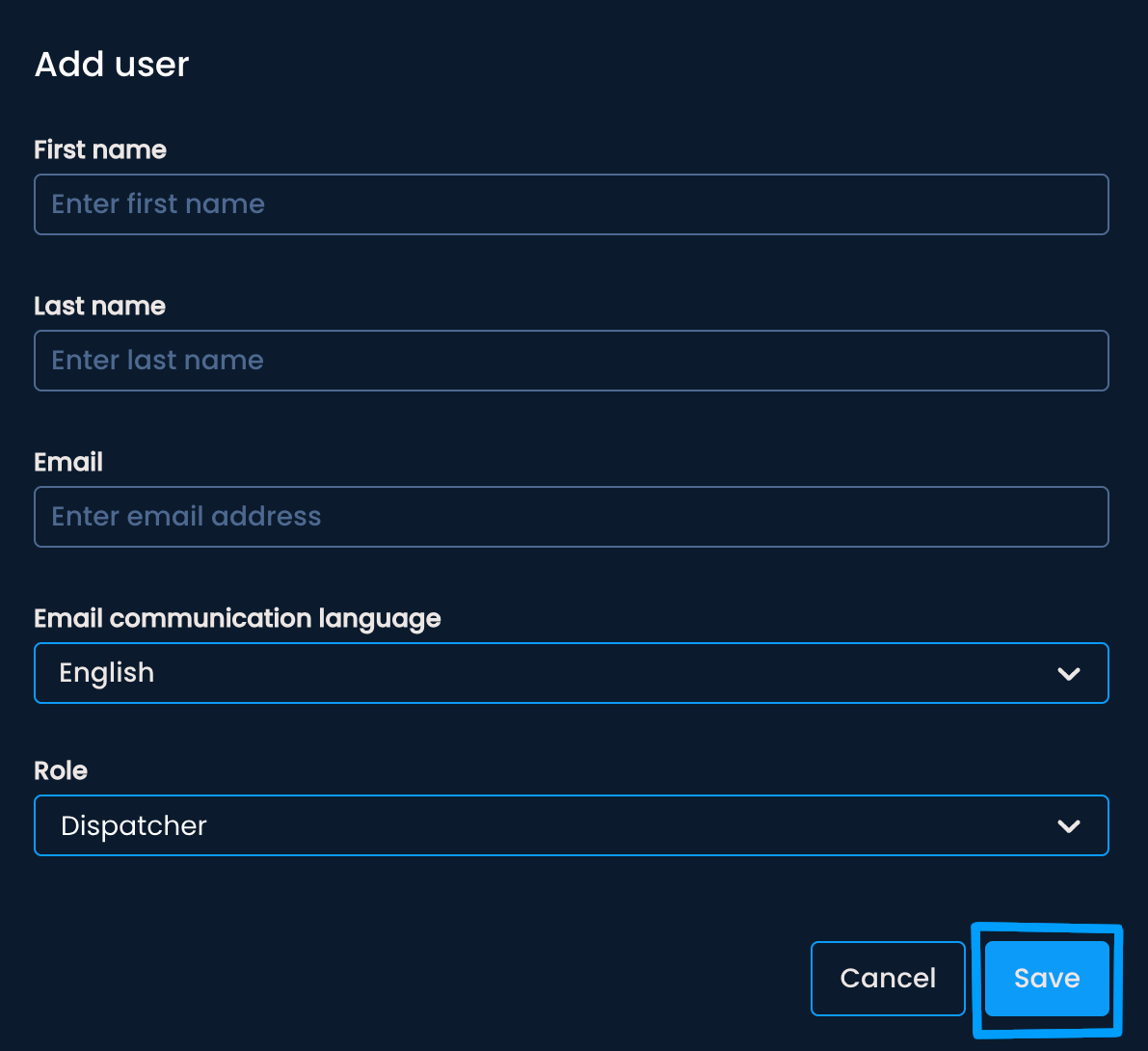
A menu will appear. In the input fields, enter the first and last name of the person for whom you are creating the account and their work email address. Below, choose a language in which the credentials and verification emails will be sent to the user (email communication language). Finally, select a role for the user.
To finish adding the user, click Save.
An email with further instructions will automatically be sent to the address provided in the previous step.
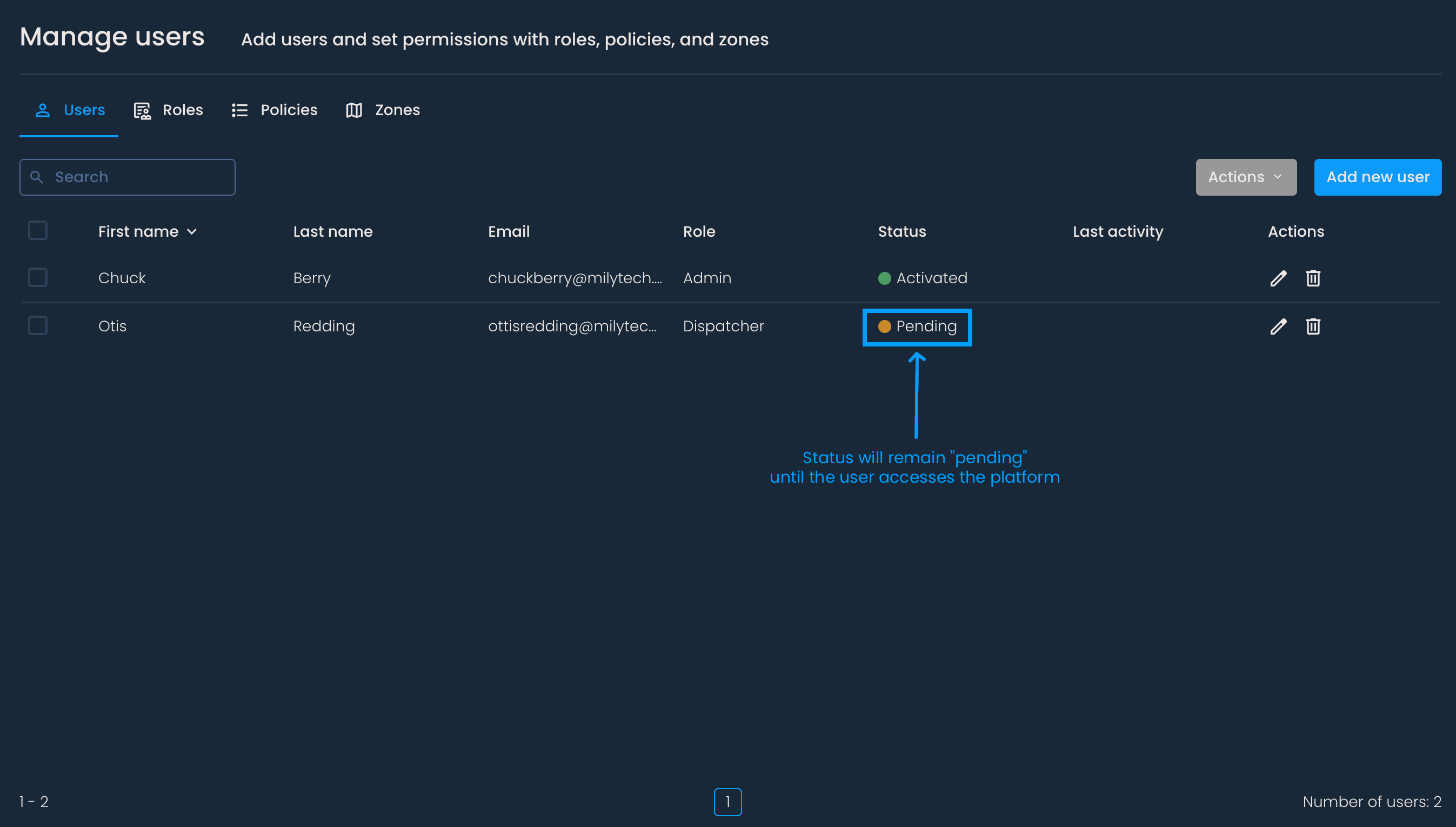
You'll see the newly added user in the list. The Status column indicates whether the user's account has been activated or the invite is still pending.

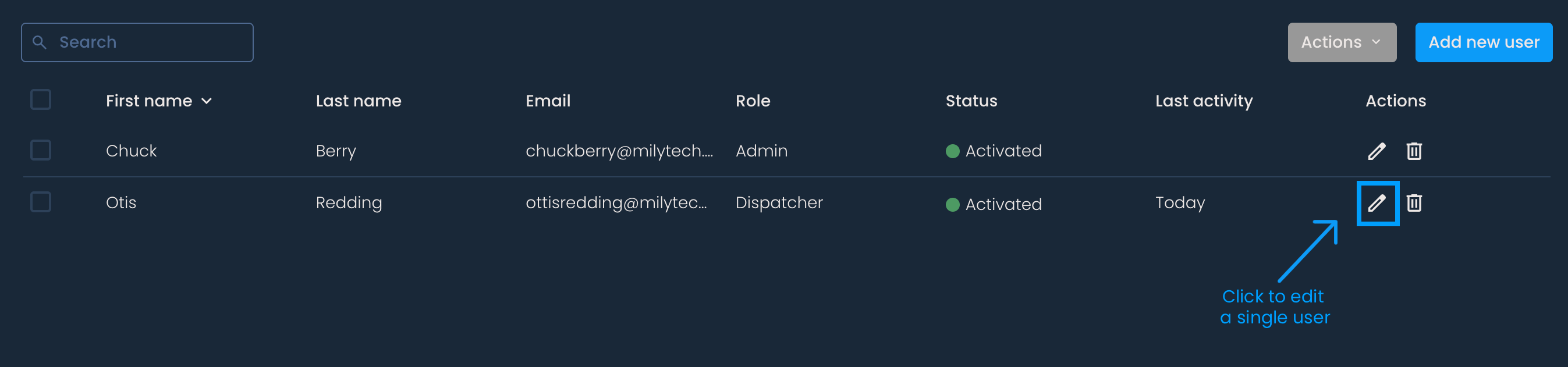
To change a user's role or edit other information, click on the pencil icon in the Actions column.
You can edit everything except the email address used to create the account.
Press Save to keep changes or Cancel to discard them.
You can edit the permissions of multiple or all users at once.
To select all users, check the next to the label First name. To select only a few users, check the individual boxes next to their names.
Click the Actions button and choose Edit.
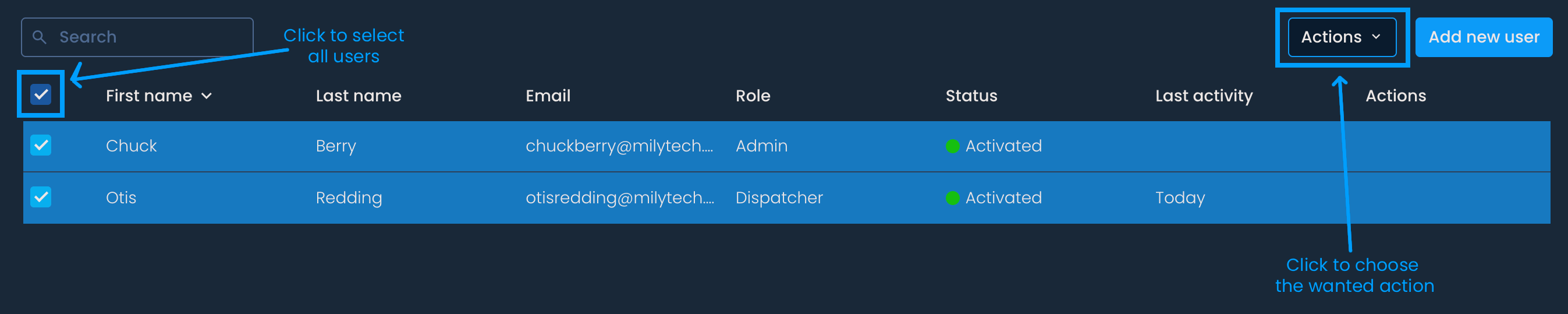
When performing a bulk edit, you'll only be able to change the users' roles.
Clicking Save will assign the new role to the selected users.
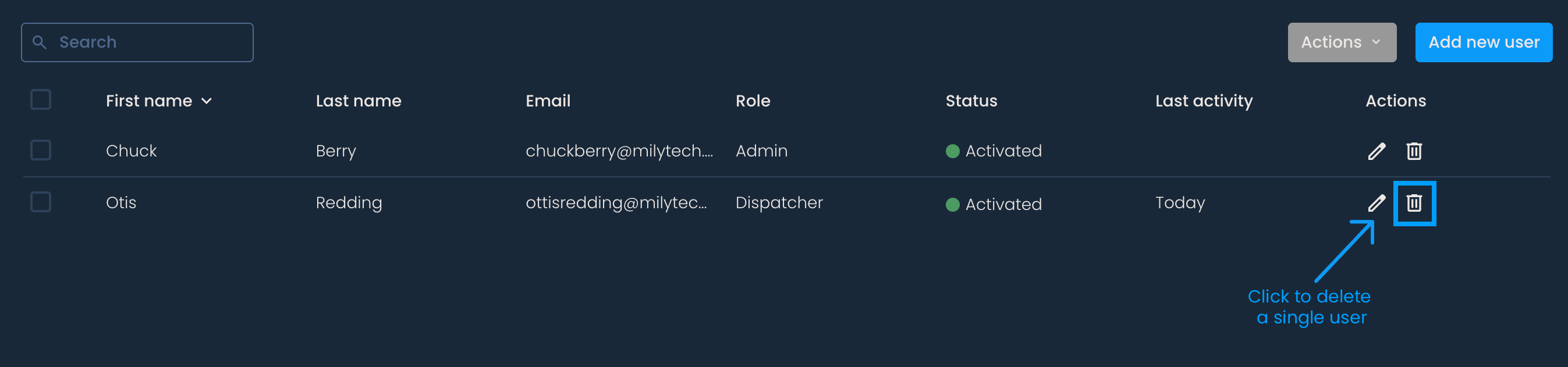
To delete a user, click the bin icon in the Actions column and then Delete.
Select the users you wish to delete by checking the box next to their names.
Click the Actions button and choose Delete.
