Policies are groups of features available to a user.
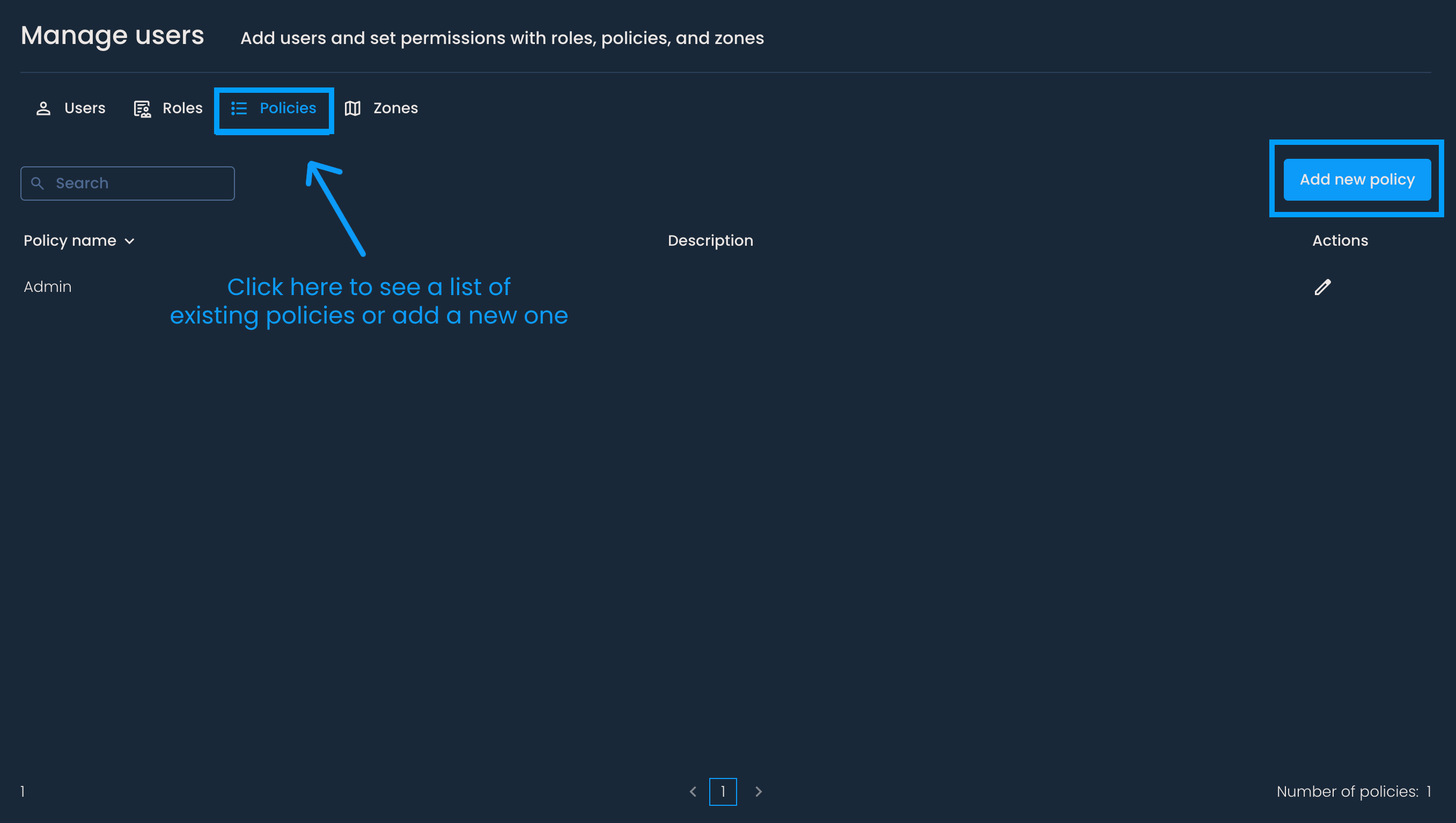
To create a new policy, go to the Manage users page. Click the Policies tab and then the Add new policy button.
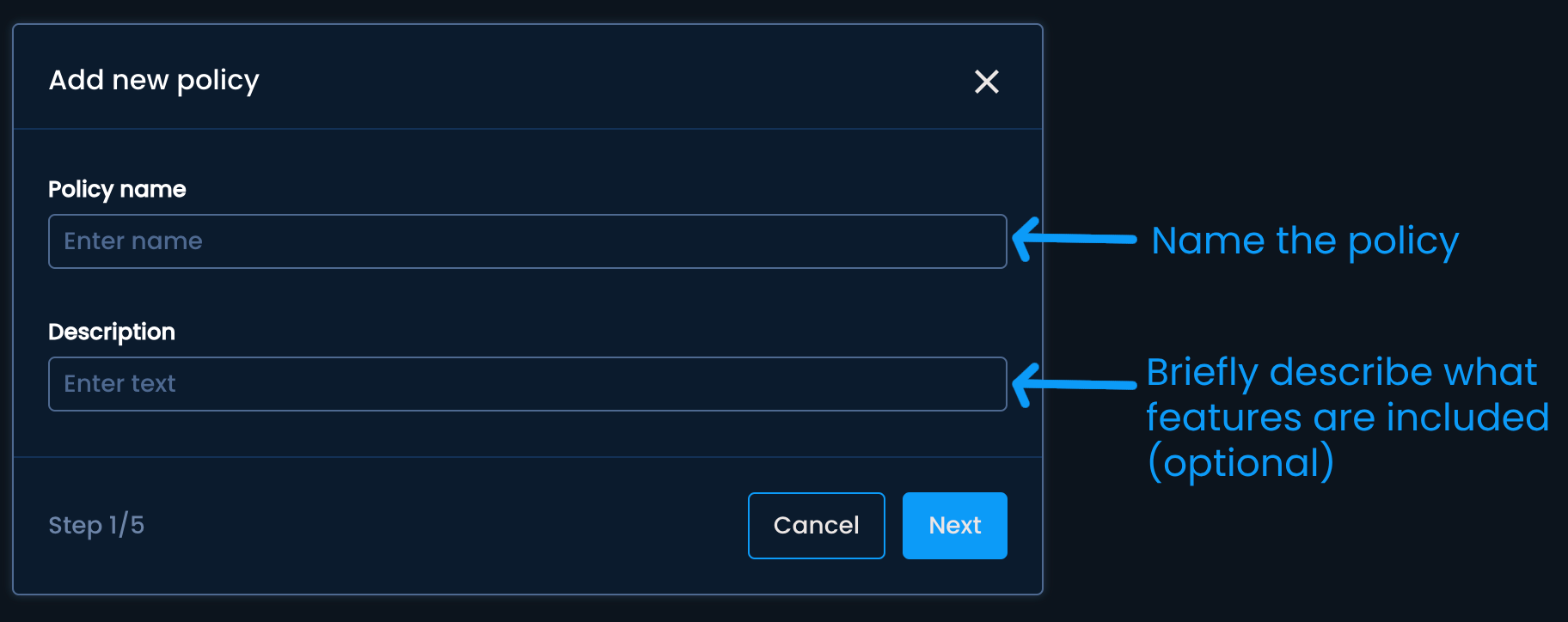
You can then name the policy and optionally write a short description (e.g., Can only access OOH point analysis). Click Next.
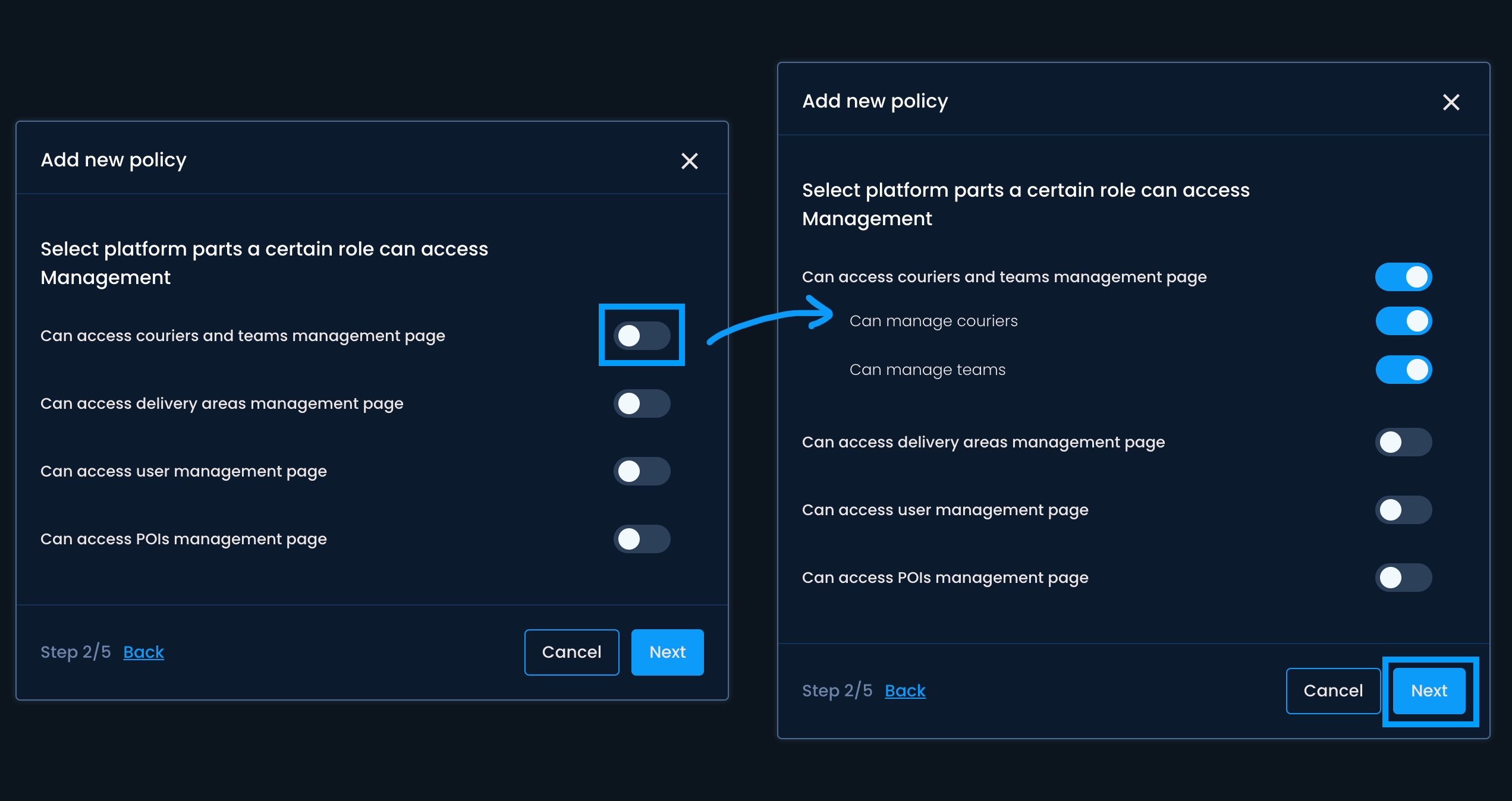
In the next few steps, you can select the platform features available to users with the assigned policy. If a page or feature includes sub-features, you can select which ones you want to make available after activating the parent feature. Once satisfied with the policy, press Save.

The newly created policy will be added to the list.
To edit the policy, click the pencil icon next to its name in the Actions column. When you're done, press Save to keep the changes.
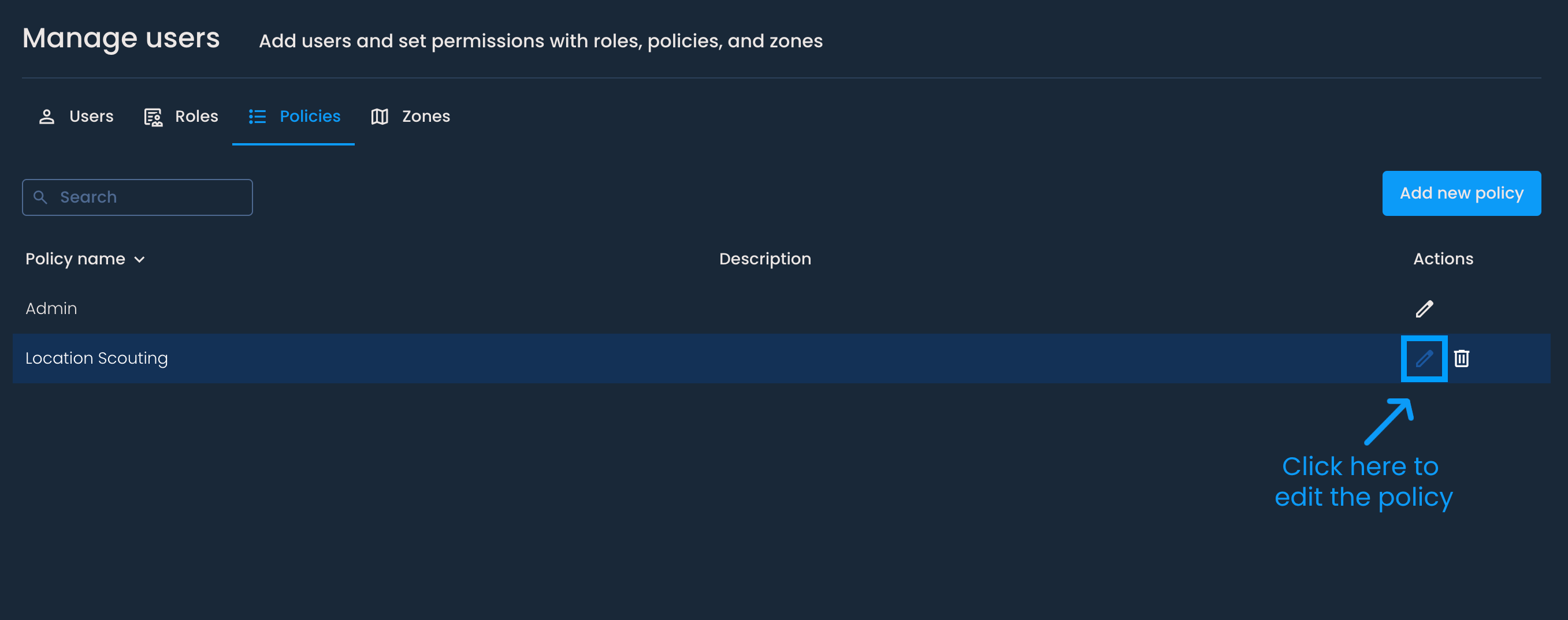
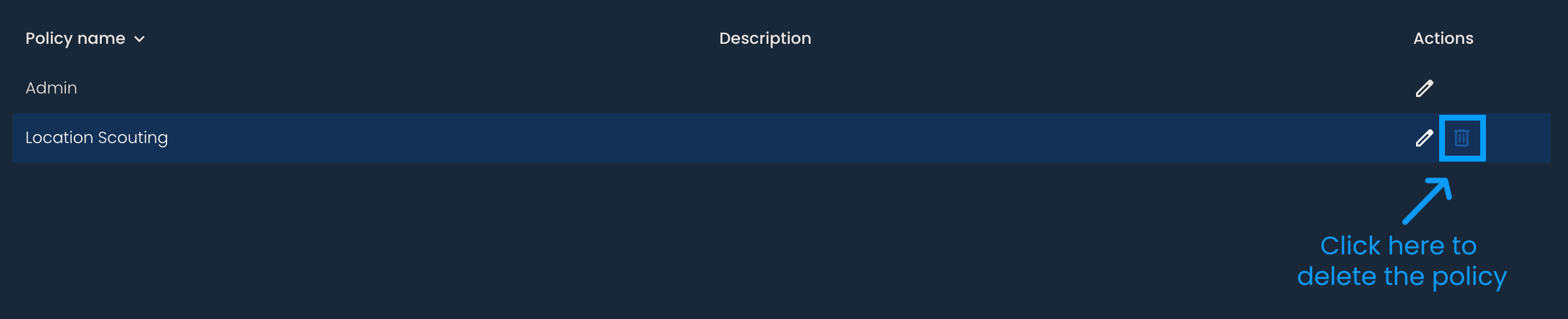
To delete a policy, click the bin icon next to its name in the Actions column and then press Delete.
If you have previously assigned this policy to a role, you won't be able to delete it. Connect the role with a different policy and then try again.

