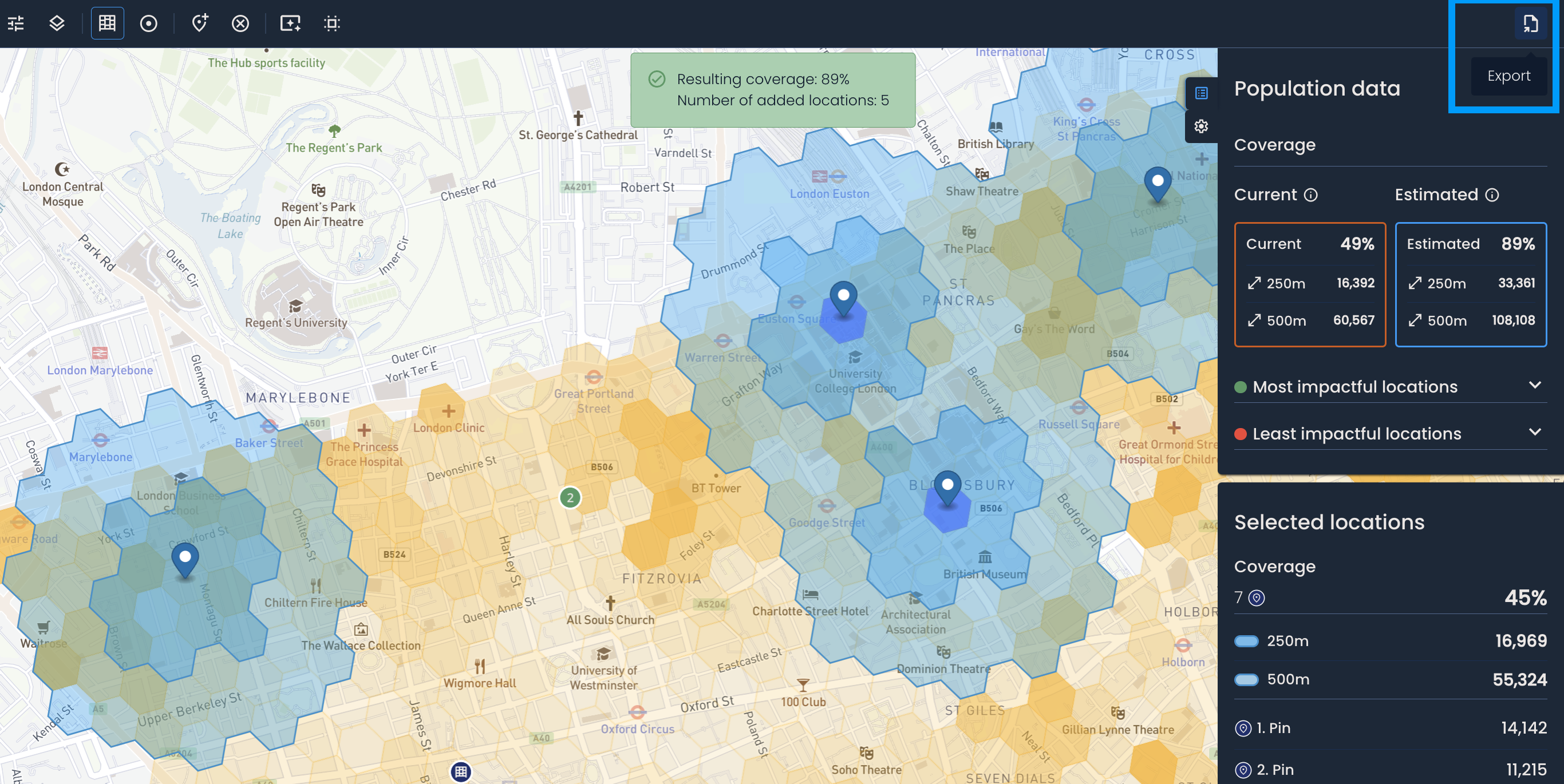
Click the Export button in the top right corner of the screen to download the results of your OOH network analysis as an Excel (xlsx) file.
Name the file and click Create to download it on your computer.
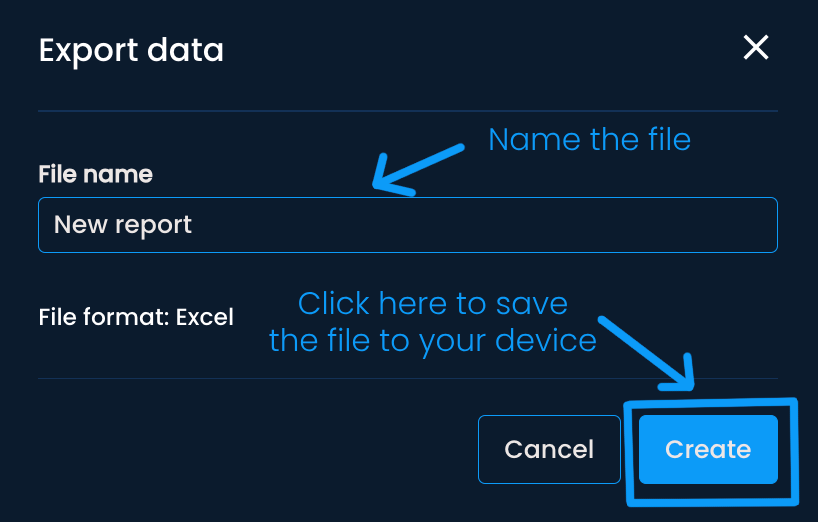
You can access the file from your browser's download history or designated Download folder.
The file will contain the:
Title of the file
Date when it was exported (created)
Email address of the user who created the file
Name of the delivery area on which the analysis was performed
Chosen date range for the analysis
Distance type used during the analysis
Current network coverage (if applicable), including the following for each OOH point:
OOH point ID (the unique ID assigned to each locker or shop in your internal system)
Name
Address
Geolocation (longitude and latitude)
Status (active or disabled)
Type (parcel locker, parcel shop, etc.)
Individual coverage based on the selected data layer
Estimated coverage with logged changes made to the network, including the following for existing and generated locations:
Name (existing OOH point name or saved pin name; defaults to “Pin” if unnamed)
Geolocation (latitude and longitude)
Status (generated, active, or disabled)
Type (parcel locker, parcel shop, distance pin, etc.)
Individual coverage of (active) existing and generated locations, calculated using the base layer
Pin color
OOH point ID (for existing points; the unique ID assigned to each locker or shop in your internal system)
Address (for existing points)
It’s possible to export analysis results based on specific criteria.
To begin, click the Export button.
Choose the Locations generated on POIs option and click Next.
Then, choose the points of interest you want to include in the export. Note that the list will only include points of interest that the Network Generator has recommended as potential locations. Click Next.
Finally, name the report and click Create. The exported report will only contain information regarding the locations generated on the included POIs:
Name
Address
Latitude
Longitude
Pin color
