When expanding an OOH network, some locations or smaller areas might be off-limits. You can mark them as undesirable, and the Network Generator will not consider them when giving suggestions.
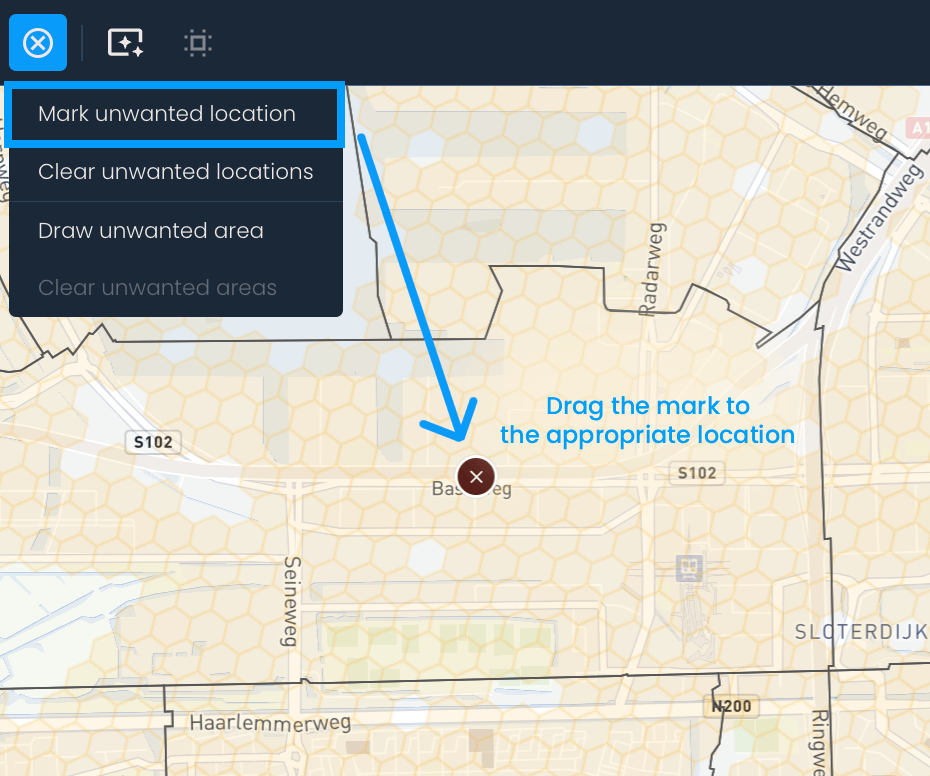
To mark a specific location, click the Manage unwanted locations button, then select the Mark unwanted location option. A red circle will appear on the map. Drag it to the location you want to exclude. Repeat the process to mark additional locations.
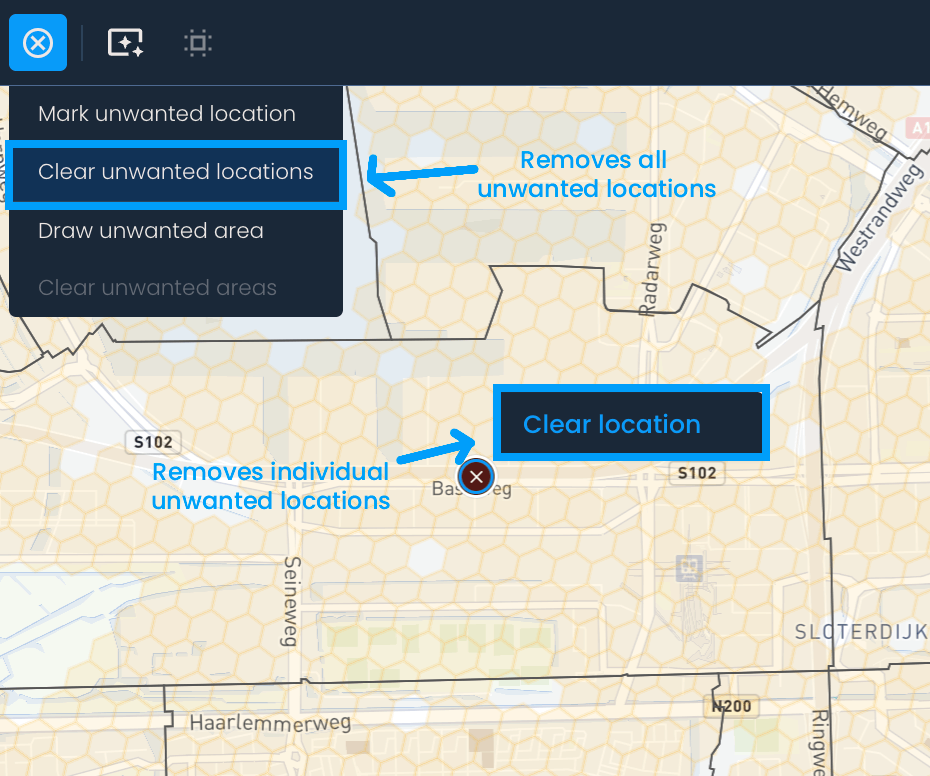
To remove an individual unwanted location, right-click it and then hit the Clear location button. To remove all unwanted locations, click the Manage unwanted locations button again and select the Clear unwanted locations option.
To mark any area, click the Manage unwanted locations button and the Draw unwanted area option. Then, draw a shape to mark the area you wish to exclude. (To close the shape, you must click on the starting dot.)
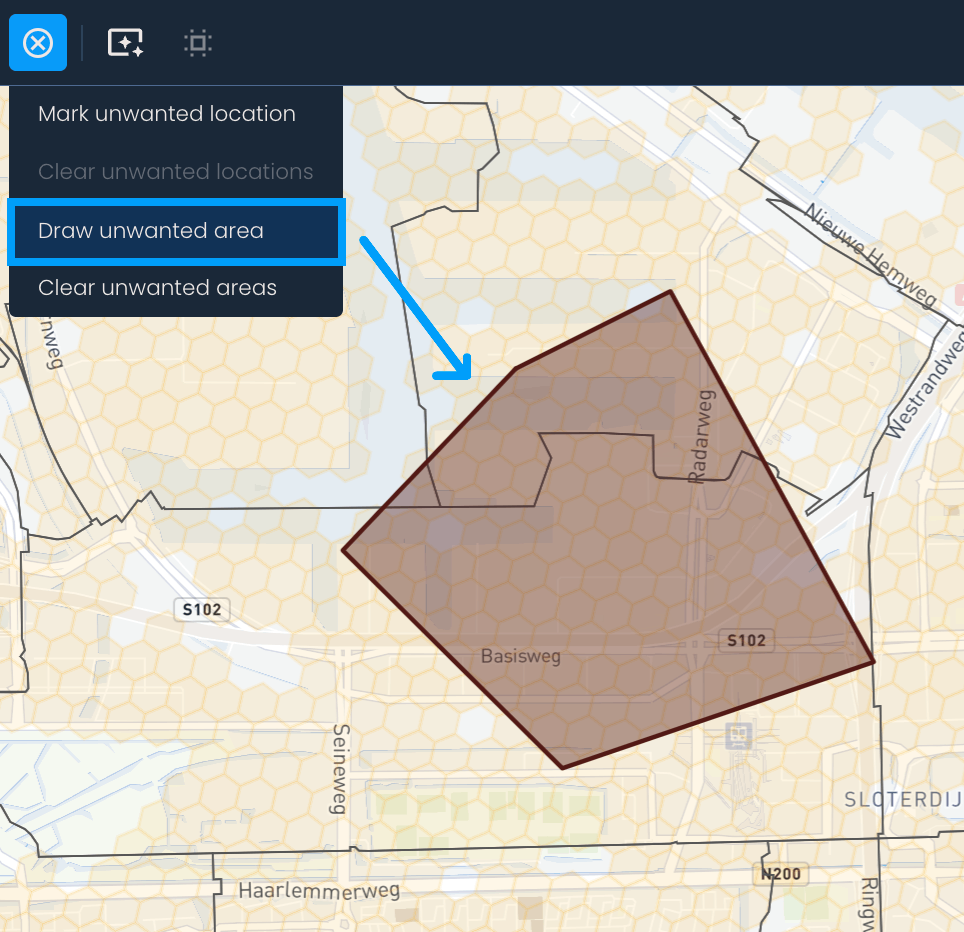
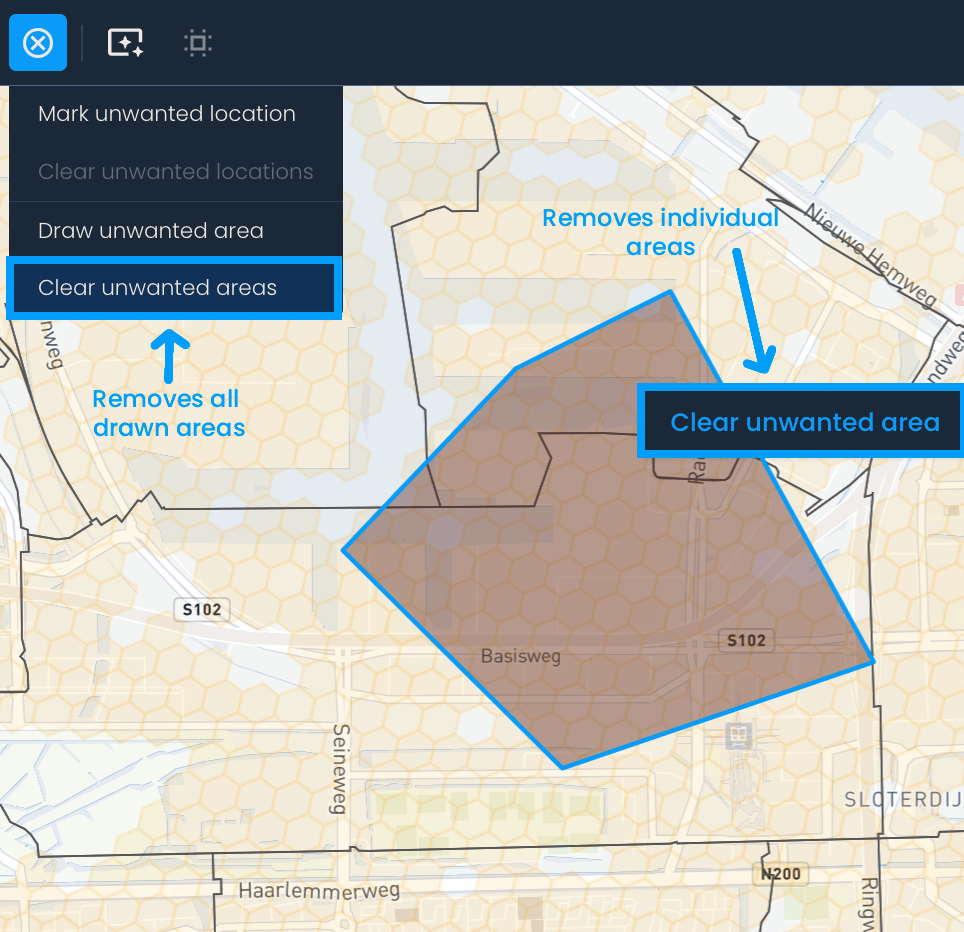
If you wish to remove one unwanted area, right-click it and then choose Clear unwanted area. But, if you want to remove all unwanted areas at once, click Manage unwanted locations and then Clear unwanted areas.
To mark a specific region as unwanted, click the Show cluster distribution in the bottom left corner to switch to the cluster distribution view. Then, right-click the region you want to exclude and click Mark region as unwanted.
To mark all regions, right-click one region, then select Mark all regions as unwanted.
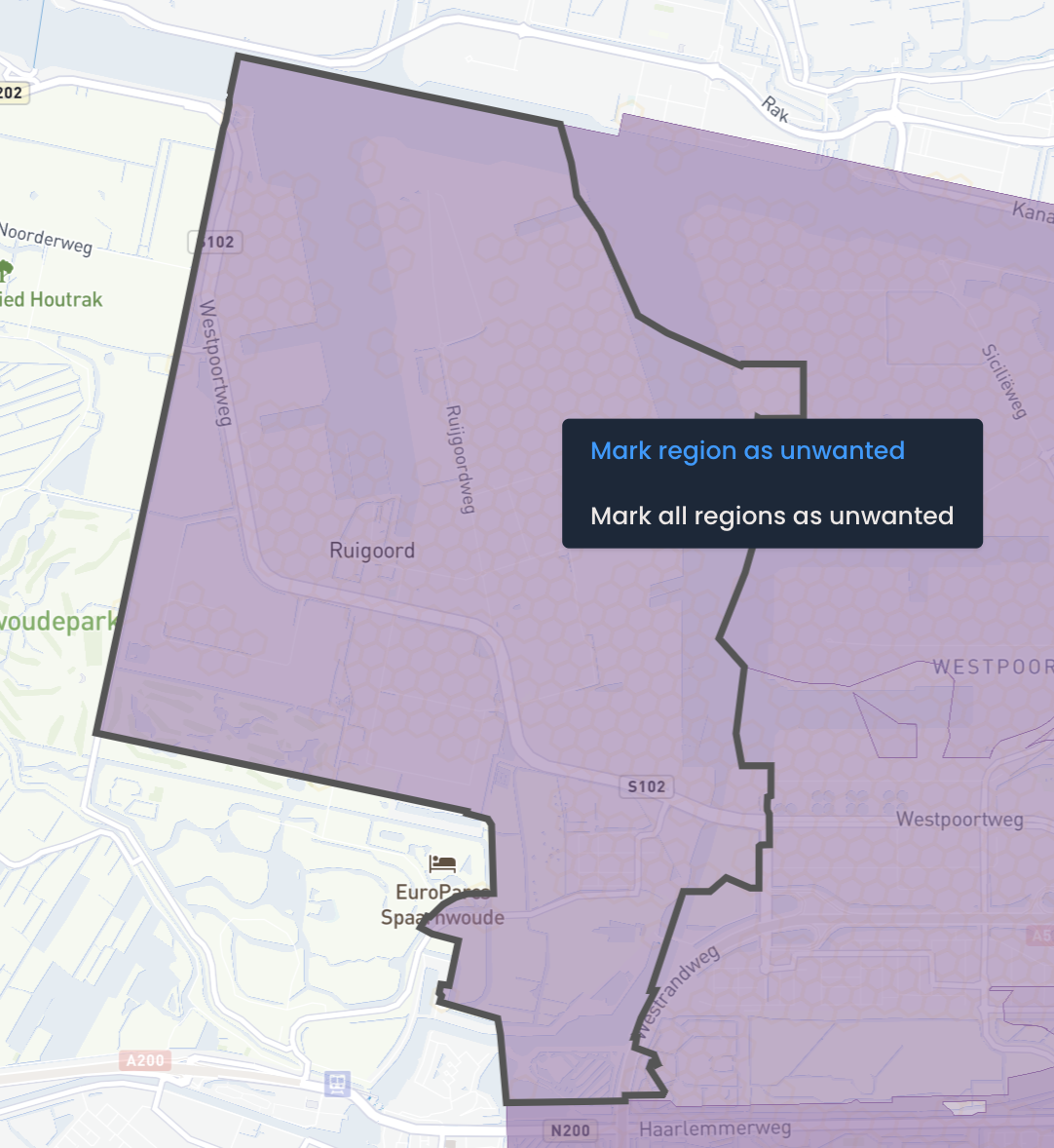
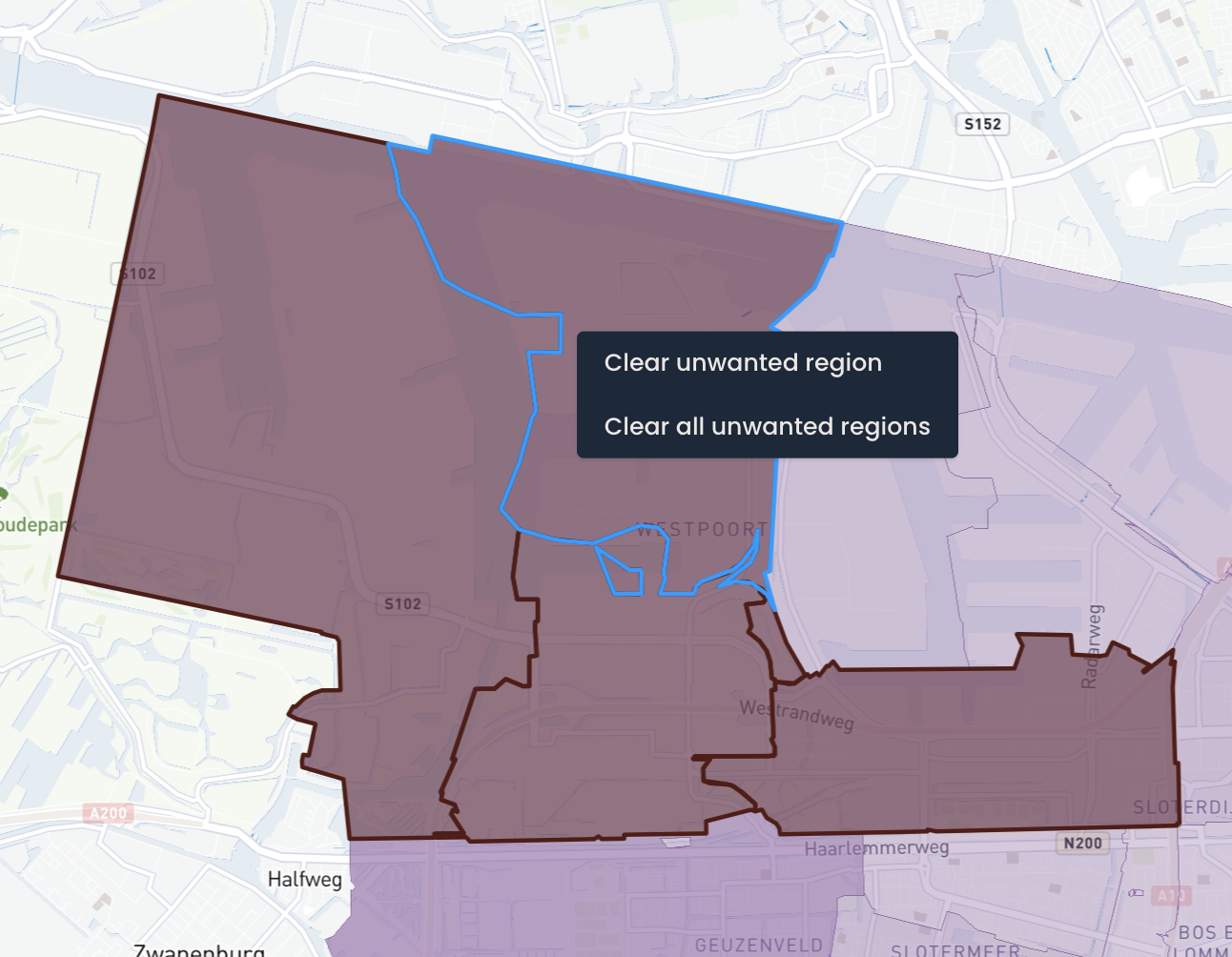
If you wish to remove one unwanted region, right-click the region again and then choose Clear unwanted region. But, if you want to remove all unwanted regions at once, right-click one marked region and then click Clear all unwanted regions.